

There is a question going around email marketing circles right now, and it usually sounds like this: now that I can ask an AI to build me an HTML email in ten seconds, do I still need an email builder at all?
It is a fair question. Email is not a small channel. Around 376 billion emails are sent every day worldwide as of 2025 (Radicati), the channel still returns roughly $36 for every $1 spent according to Litmus, and a majority of marketers now use AI somewhere in their workflow according to HubSpot's 2025 AI trends research. If a tool can generate a finished template from a one-line prompt, skipping the builder seems like an obvious win.
Then you actually send the thing, and the picture changes fast. Across the emails we check at Unspam, only 30% pass our HTML best-practice checks (the benchmark figures in this article come from our deliverability benchmark, trailing twelve months ending June 2026). The HTML body is the single weakest part of the average campaign we measure, behind subject lines, behind links, behind even spam-trigger language. And it is exactly the part people are now handing to a tool that was never built for it.
That gap is the whole story. These tools are good at writing an email. They are not yet good at writing email HTML, and those are very different things. This article walks through what the major AI tools actually output, why email HTML is its own language, where the difference shows up in the inbox, and how a purpose-built builder like Postcards closes the gap. It ends with a pre-send scorecard you can hold any email to, whether a model wrote it or you did.
One idea runs through all of it, so it is worth stating plainly now: looking finished in a browser and rendering correctly in an inbox are two different things, and the only test that settles which one you have is opening the file in a real inbox check.
Here is what this article covers:
- Why web HTML and email HTML are two entirely different languages, and which specific rules the gap falls on
- What v0, Bolt, Cursor, Replit, ChatGPT, Claude, Gemini, and Lovable actually produce by default, and where each one fails
- How ESP-built AI and dedicated email builders compare on portability and rendering
- Where broken HTML costs you inbox placement, in data from Unspam's own benchmark
- A twelve-point pre-send scorecard every email should clear before it ships
- The workflow that uses AI where it helps and a tested builder where it matters
Web HTML and email HTML are not the same language
The reason AI tools struggle with email has nothing to do with how smart the model is. It is that almost every AI builder was trained to produce modern web pages, and email is built on a completely different and much older set of rules.
A browser is one engine, an inbox is dozens
A web browser is a single, modern, standards-compliant rendering engine. An inbox is dozens of inconsistent ones. One of the most widely deployed business email clients, Outlook on Windows, renders your HTML with the Microsoft Word engine, not a browser. Gmail rewrites and strips parts of your code before showing it. The reference site Can I Email tracks more than 300 HTML and CSS features across about 20 email clients, a big jump from the 50 features it covered when it launched in 2019. Many of its entries were last tested years ago, so the support numbers are estimates rather than a live snapshot, and the spread between the best and worst clients is enormous.
Where your readers actually open mail
Here is where most people read, which is the part that makes this matter:
| Email client | Share of opens (Litmus, May 2026) |
|---|---|
| Apple Mail (iPhone, iPad, Mac) | 64.7% |
| Gmail | 24.1% |
| Outlook (desktop) | 6.5% |
| Yahoo Mail | 2.6% |
| Everything else | under 2% |
Apple Mail and Gmail together are about 89% of opens. (Apple's number is inflated because its Mail Privacy Protection counts a lot of opens that may not be human, so treat it as an upper bound, but the concentration is real.) The catch is that Gmail, the second most common client, is also one of the most aggressive at rewriting your CSS, and classic Outlook, though small in share, is still widely deployed in offices and is where layouts break worst. So the clients that punish web-style HTML are exactly the ones you cannot ignore.
The specific differences AI gets wrong
These are the concrete differences an AI tool has to get right, and usually does not:
| What web HTML uses | What email actually needs | Why |
|---|---|---|
| Layout with divs, flexbox, CSS grid | Nested tables | Outlook on Windows uses the Word engine and ignores modern layout. Flexbox and grid do not work there. |
| Styles in a style block or external CSS | Inline styles on almost every element | Gmail can drop an entire style block on a single CSS error, and the Gmail app ignores embedded styles for non-Google accounts. |
| Rounded corners, shadows, background images | VML and Outlook-only conditional comments as fallbacks | The Word engine ignores border-radius and CSS background images, so buttons go square and backgrounds vanish. |
| Any file size | Keep the HTML under about 100KB | Gmail clips messages around 102KB and hides everything after, including your unsubscribe link. |
| One prefers-color-scheme rule | Defensive colors plus color-scheme meta tags | Several clients force-invert colors and ignore your dark-mode query entirely. |
None of this is exotic to an email developer. It is just invisible to a tool built for web pages, and to the person prompting it. For a deeper walk through the rules themselves, our guide to Email HTML best practices covers the hand-coding side in detail.
Why the support percentages lie
It is easy to look up a feature, see a high support number, and assume you are safe. You are usually not, because the numbers hide where the gaps fall. Per Can I Email, display: flex and display: grid each show around 83% support, which sounds fine until you remember the Word engine in Outlook ignores both, so a layout built on flex or grid silently collapses there. The CSS position property shows about 80%, but only a third of that is full support and the rest is partial: most clients honor only some values, and Outlook desktop honors none. Web fonts via @font-face sit near 24%, and CSS custom properties (variables) near 45%, with classic Outlook supporting no variables at all and Gmail allowing var() usage but not the declarations that define them. That last pair is why AI output that leans on a web font and a variable-driven color system, exactly how a model styles a modern web page, loses its typography and its brand colors the moment it lands in a real inbox. A headline percentage is an average across clients that weight everyone equally. Email does not.
What general-purpose AI tools actually output
Start with the tools people reach for first: the website and app builders, and the chatbots. The important thing to understand is that none of these are email products. They are web generators that happen to also emit HTML, so people repurpose them.
The app builders: right tool, wrong job
| Tool | Built for | Default output | Email-ready by default? |
|---|---|---|---|
| v0 (Vercel) | React and Next.js web UIs | Divs, Tailwind, JavaScript | No |
| Bolt.new | Full-stack web apps | Modern web HTML | No |
| Cursor / Replit | Coding apps and sites | Web-style HTML from the underlying model | No |
| ChatGPT (Canvas) | General chat | Div-based web HTML | No |
| Claude (Artifacts) | General chat | Div-based web HTML | No |
| Gemini | General chat | Mixed tables and divs, inconsistent | No |
| Lovable | Web apps | React Email (tables, inline CSS) | Partly |
v0, Bolt, Cursor, and Replit are app builders. Asking them for an email is like asking a word processor for a spreadsheet: you can force it, but you are fighting the tool the whole way, and the output is modern web HTML that an inbox was never going to render the way the preview promised.
The chatbots and the preview trap
The chatbots deserve a specific warning, because they create a trap. ChatGPT's Canvas and Claude's Artifacts both render a live preview of the HTML they generate. That preview uses a browser engine. So your AI email looks finished and polished on screen, which is precisely why the breakage is invisible until you send it to a real inbox. This is the single biggest reason people get burned: the preview lies, not on purpose, but because a browser is not Outlook.
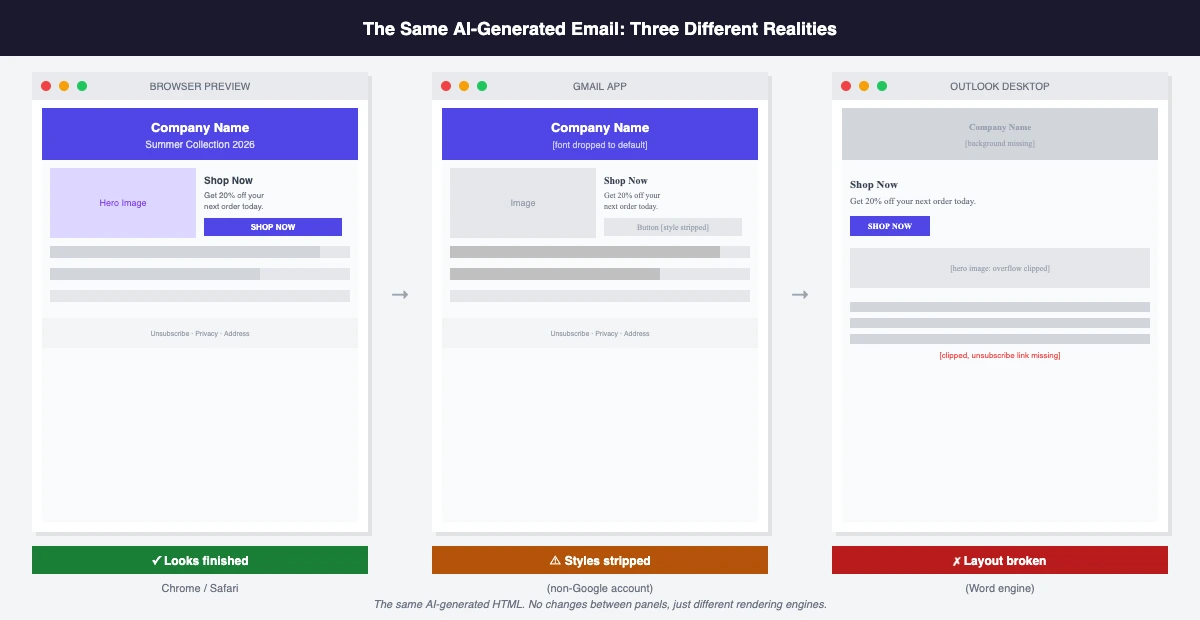 The failure modes are consistent. A layout that looks clean in preview leans on properties Outlook ignores, like max-width on a table or flexbox, so columns collapse or run off the edge. Web fonts drop to a default like Times New Roman. Rounded buttons square off. And any styling that was never inlined simply disappears in parts of Gmail.
That last point is worth making concrete, because it is bigger than it sounds. When the Gmail app renders mail from a non-Google account, a setup common enough to have its own nickname (GANGA, the Gmail App with Non-Google Accounts), it does not support the <style> tag at all, so every rule a model left in a head style block is dropped for that entire segment of readers. Gmail is also all-or-nothing about embedded styles: a single error it dislikes, such as an @font-face or @media rule nested inside another at-rule, makes it strip the whole style block, and it enforces a hard per-block size cap (historically around 8KB). A chatbot that confidently piles all your CSS into one big <style> tag is writing exactly the thing Gmail is most likely to throw away.
The one partial exception
Lovable is the one partial exception worth naming. Because it routes email generation through the React Email library, it produces table-based, inline-styled markup by default, and its documentation even calls out the roughly 102KB Gmail clipping limit. That is genuinely closer to correct. It still does not handle Outlook's conditional comments, dark mode, or Apple Mail specifics on its own, and it is still fundamentally a web-app builder, but it shows what "email-aware" looks like when a tool actually tries.
Steering a chatbot toward email-safe HTML
You can get usable output from a general chatbot, but only by handing it the email knowledge it does not apply on its own. In practice that means spelling out every requirement in the prompt. The minimum set to get usable output:
- Build the layout on nested tables, not divs or flexbox
- Inline every style on the element, not in a
<style>block - Wrap Outlook-specific fixes in MSO conditional comments (
<!--[if mso]>...<![endif]-->) - Give every web font a real named fallback stack (Arial, Georgia, a system font)
- Keep the whole file under the roughly 102KB Gmail clipping limit
- Include both an HTML and a plain-text version
Even then, two things stay true. The model does not reliably hold that mode across edits, so the third revision quietly drifts back to web habits. And the only way to know whether it complied is to test the result in real clients, not to trust that it followed instructions. If you are already using AI for the words, our roundup of ChatGPT email marketing prompts is a better use of the same tools.
"But my email platform has AI built in"
The next thing people say is that their ESP or builder already has AI, so this is solved. Sometimes. The catch is that "AI for email" means three very different things, and the marketing blurs them on purpose.
Three things "AI for email" can mean
- AI that writes copy. Subject lines, body text, a call to action. This is the most common kind and the least risky, because a human still places the words into a tested layout.
- AI that assembles editable sections. It gives you a rough structure with placeholder blocks that you finish by hand. Klaviyo's email AI works this way, and its own docs note you still have to add buttons, links, and images by hand before it is ready to send.
- AI that generates a full template. Layout, copy, sometimes images, from one prompt. This is the impressive demo, and also where the markup itself becomes the unverified output.
The axis that matters for deliverability: portability and testing
Then there is a second axis that matters even more for deliverability: can you take the HTML anywhere, and does anything test how it renders? Here is how the dedicated email builders, the tools whose whole job is to hand you portable HTML, compare.
| Builder | What the AI makes | Portable HTML? | Built-in render testing |
|---|---|---|---|
| Beefree | Copy and images (you build the layout) | Yes, export to ESPs | Real device previews |
| Postcards (Designmodo) | Full AI stack in a prompt chat: generate an email from scratch, then edit, restyle, redesign, and translate it | Yes, export to ESPs | Real device previews |
| Unlayer | Full template, copy, images, chat edits, HTML/screenshot import | Yes, export to ESPs | Real device previews |
| Stripo | Full template, copy, images, chat edits | Yes, export to ESPs | Real device previews |
All four export portable HTML you can take to any ESP, which is the entire point of a builder. Where they differ most is how much of the work the AI does. Postcards, Unlayer, and Stripo offer a full prompt-driven workflow, while Beefree's AI writes copy and images and leaves the layout to you. All four also surface a render preview, but a quick preview is not the same as a deep cross-client test, so careful teams still validate the final HTML in a dedicated check before sending. The contrast with a full-template ESP like Mailchimp or HubSpot is sharper still, because those tend to lock the output inside their own sending rather than hand you portable code. For a full ranked comparison of these dedicated builders on templates, AI, collaboration, and deliverability, see our guide to the best email template builders for 2026.
Where this actually costs you: the inbox
It is tempting to claim that bad HTML sends you straight to spam. It is more honest, and more useful, to be precise about how the damage really happens, because overstating it is how you lose credibility.
Bad HTML does not go straight to spam, it goes there indirectly
Modern filters at Gmail, Outlook, and Yahoo are driven mostly by sender reputation and recipient engagement, not by a tidy HTML quality score. So messy AI markup rarely triggers a direct penalty. The real path is indirect, and it is the one Litmus describes in its own February 2026 deliverability guidance: an email that renders broken makes people doubt it, doubt lowers engagement and raises complaints, and weak engagement and complaints are exactly what damage your sender reputation and push future sends toward spam. Google's bulk sender rules put a hard number on the most damaging signal: keep spam complaints under 0.1%, which is one in a thousand. A template that looks broken in a quarter of inboxes is a fast way to cross that line.
The HTML body is the weakest part of the average campaign
We see this pattern in our own data. Across the emails run through Unspam over the trailing twelve months ending June 2026, the HTML body is consistently the weakest area of the whole message:
| What we check | Share of emails that pass |
|---|---|
| HTML best practices | 30% |
| Subject-line quality | 56% |
| Free of broken links | 78% |
| Accessibility checks | 84% |
| Avoids spam-trigger language | 89% |
| Scores in the safe SpamAssassin range (0 to 3.0) | 89% |
| Passes a full deliverability check | 82% |
Read the top row again. HTML is the check most emails fail, by a wide margin, and far more than fail on subject lines or spam words. It is also the check you are most likely to hand to a chatbot.
Clipping, heuristic filters, and other concrete hooks
There are a few more concrete hooks worth knowing about broken HTML specifically:
- Older heuristic filters still exist downstream. Open-source filters like SpamAssassin still score HTML-only mail with no plain-text part (worth a couple of points) and image-heavy, low-text mail. These are not what Gmail runs, but they describe the patterns sloppy AI output tends to fall into, and plenty of corporate gateways still use them.
- Clipping hides your unsubscribe link. If bloated markup pushes you past Gmail's roughly 102KB threshold, Gmail truncates the message. If your unsubscribe link was below the cut, frustrated readers hit "report spam" instead. Note that external image files do not count toward that limit, only the markup, which is exactly what AI tools tend to over-produce.
- Dark mode cannot be delivered evenly. The
@media (prefers-color-scheme)query sits near 42% support, is only partially honored by Gmail (which applies its own color handling rather than your query), and gets rewritten into invalid syntax by Yahoo. Outlook on Windows ignores it and instead injects its own attributes you have to target separately, while Apple Mail auto-flips pure#FFFFFFtext, which is why careful designers use an off-white instead. A model that emits one tidy dark-mode rule has covered a minority of the clients that will actually recolor your email. - Broken HTML is the norm, not the exception. This is not unique to our numbers. The 2026 Email Markup Consortium accessibility report analyzed 376,348 real emails and found 99.88% shipped with serious or critical accessibility defects, with only 8 passing every check. Those defects (layout tables with no presentation role, missing alt text, no document language) trace back to the same web-first habits, and the lesson carries: clean email HTML is hard even for professionals, so an untested dump from a chatbot is unlikely to beat that baseline.
What a percentage point of placement is worth
The stakes are not abstract. Depending on what each email is worth to your program, a single percentage point of inbox placement on a one-million-email send runs from about $1,000 at a typical $0.10 per email to $20,000 for a high-value list. Either way, a template that quietly breaks for a quarter of your list is real recurring revenue, not a cosmetic glitch. If you want to see how your own sending domain and content score across these factors, the Unspam deliverability benchmark shows aggregate data from millions of tests, and you can run your own message through the checks below before you send.
What email-ready actually means: the pre-send scorecard
By now the pattern is clear: an AI draft can look done and still be nowhere near sendable. So it helps to replace the vague feeling of "this looks finished" with an explicit standard. Here is the one we hold an email to before it goes out, no matter who or what wrote it.
The preview is the most misleading signal in email
It is worth being blunt about why. Code that renders perfectly in a browser tab, or in a chatbot's preview pane, routinely falls apart in Outlook, in the Gmail app, in Yahoo and AOL webmail, and on small mobile screens. None of those failures show up in a browser, because a browser is not running any of those engines. The only meaningful test is opening the actual HTML in a real cross-client render check and looking at the screenshots. Everything in the scorecard below is something that check, not a preview, can confirm.
The scorecard: twelve things that have to be true before you send
| Checkpoint | What passing looks like |
|---|---|
| Layout and table structure | Built on nested tables with role="presentation" and fixed-width fallbacks, so the structure holds in Outlook on Windows instead of collapsing or overflowing. |
| Inline CSS | Every critical style is inlined on the element. Nothing load-bearing lives only in a style block, so the email survives clients that strip embedded CSS. |
| Outlook and MSO fallbacks | Conditional comments, ghost tables, and VML are in place where needed, so buttons, backgrounds, and spacing render in Outlook with no Times New Roman reversion. |
| Fonts and fallback stack | Every web font ends in a safe system font, so a client that blocks the font degrades gracefully instead of dropping to a generic serif. |
| Size and clipping | The HTML stays well under the roughly 102KB clipping point, with no bloated or duplicated code that could truncate the message or cut the unsubscribe link. |
| Dark mode | Colors, logos, and rounded elements stay legible when a client inverts or recolors, with no disappearing text or broken corners. |
| Links and CTAs | Every link and button points to a real, fully qualified URL, taps cleanly on mobile, and keeps its tracking parameters. |
| Responsive and mobile | Multi-column sections stack cleanly on small screens with padding and alignment intact, tap targets stay large, and text never needs horizontal scrolling. |
| Accessibility | Images carry meaningful alt text, layout tables use presentation roles, the document declares a language, and text meets contrast ratios. |
| Compliance | A visible, working unsubscribe link and a valid physical mailing address are present. |
| Code hygiene | No stray CSS comments, no unencoded emojis or special characters, and clean markup, so stricter webmail clients still parse and style the message. |
| Inbox-rendering check | The email has been opened and confirmed in a real cross-client render test, not just a browser preview. |
Why a near-perfect-looking email still fails
The important thing about that list is that it is not a points average. An email can ace eleven rows and still be undeployable because of the twelfth. A single missing unsubscribe link, one font with no fallback, or one un-inlined stylesheet is enough to sink the send, which is why "looks 90% done" and "is sendable" are unrelated statements. AI drafts fail this way constantly: the design looks great, and then one blocking defect quietly makes the whole thing unshippable.
Most of those blocking defects trace back to one client. Classic Outlook for Windows, meaning versions 2007 through 2019 and the classic Office 365 desktop client, renders with the Microsoft Word engine rather than a browser. That engine has a specific set of behaviors every email developer has memorized:
- Ignores CSS
widthandheight, so you must use HTMLwidthandheightattributes on images - Strips
paddingandmarginoff images, so you pad the surrounding table cell instead - Ignores
widthandpaddingon divs, which is why layouts use tables rather than divs - Drops the
:hoverstate entirely - Shows only the first frame of an animated GIF
It introduces its own bugs too. On Windows displays scaled to 125% or higher it distorts layouts unless you declare the Office namespace and set PixelsPerInch to 96 in a conditional block. It reverts to Times New Roman whenever a web font sits first in the stack unless you wrap the @font-face rule so Outlook never sees it. These are not edge cases. They are the default behavior of the engine behind a large share of business email, and a model trained on web pages has no reason to write any of the scaffolding that works around them.
There is light on the horizon. The new Outlook for Windows, in beta since 2022 and in the Windows store since 2023, uses a web rendering engine instead of Word, and Microsoft has begun steering users onto it. The classic Word-engine client will wind down over the next few years, but Microsoft has committed to supporting it into 2029 for many plans, so you still have to code for the Word engine, because that is what a meaningful chunk of your recipients are still using.
Run your draft against this before it ships
The scorecard is only useful if you actually run an email against it, and you do not have to do that by eye. Send the finished message through a tool that opens it in real clients and checks these factors for you. Our Unspam spam checker covers the content, authentication, and code-quality side, and the inbox placement test shows where the message actually lands at Gmail, Outlook, and Yahoo. That is the difference between believing an email is ready and knowing it is.
What a purpose-built builder gives you, and where AI fits
This is the answer to the original question.
Typing was never the hard part
An email builder was never about saving you from typing HTML. The hard part is producing HTML that renders the same across dozens of inconsistent clients, satisfying every row of that scorecard at once, and that is the part a tested builder solves and a chatbot does not.
LLM output vs a builder, standard by standard
Put the two side by side against the standards that actually decide whether an email renders and lands. This is raw output from a general-purpose LLM versus the HTML a purpose-built, cross-client-tested builder emits.
| HTML standard | Raw LLM output | Tested email builder |
|---|---|---|
| Layout | Divs, flexbox, and grid (web layout) | Nested tables with presentation roles |
| CSS delivery | Often left in a style block, inlined inconsistently | Inlined on every element |
| Outlook (Word engine) | No MSO conditionals, VML, or ghost tables, so layouts break | MSO fallbacks built in |
| Web fonts | Frequently no fallback, so it drops to Times New Roman | Safe fallback stacks |
| Dark mode | One prefers-color-scheme rule at most | Defensive colors, checked in dark mode |
| Size and Gmail clipping | Verbose markup that can cross the roughly 102KB limit | Optimized to stay under it |
| Responsive and mobile | Flexbox that collapses or misaligns on small screens | Tested mobile stacking |
| Accessibility | Alt text, table roles, and language attribute often missing | Built into the modules |
| Legal compliance | Unsubscribe link and physical address frequently omitted | Templated in |
| Cross-client testing | None, just a browser preview | Real device and client testing |
The pattern is consistent: the LLM optimizes for what looks right in a browser, and the builder optimizes for what survives the inbox.
How the scorecard gets satisfied by default
Take Postcards as the worked example. Its 100+ modules are hand-built and, by Designmodo's account, tested in Litmus and Email on Acid across 16 clients, including the ones that break web HTML: Outlook desktop, the Gmail app, Apple Mail, Yahoo, even older clients like Lotus Notes. Every template is checked responsive and in dark mode, and you can see it in real device previews rather than a browser approximation. The exported code is clean, production-ready HTML that you can push in one click to the major ESPs, including Mailchimp, HubSpot, Klaviyo, SendGrid, Brevo, Constant Contact, Zoho, and SendPulse, or just download as raw HTML. Pricing starts free, with paid tiers at $16 and $24 a month.
Map that back to the scorecard and the value is concrete. The Outlook and MSO fallbacks, the inline CSS, the dark-mode behavior, and the cross-client rendering are not things you check after the fact, they are pre-satisfied, because the modules were already built and tested that way. You start from a passing grade instead of working back toward one.
The same prompt, email-safe output
Here is the part that resolves the AI question instead of fighting it. Postcards gives you the full AI workflow people actually want: describe the email and it builds one, then edit the design, translate it, or restyle it, all from a prompt chat. The difference is what comes out. A general chatbot hands you raw web HTML and leaves the rendering to chance. Postcards generates against its tested, cross-client modules, so the same prompt-driven speed produces email-safe, portable HTML that already satisfies most of the scorecard. You get the AI experience without inheriting the AI rendering problem.
The workflow that actually works
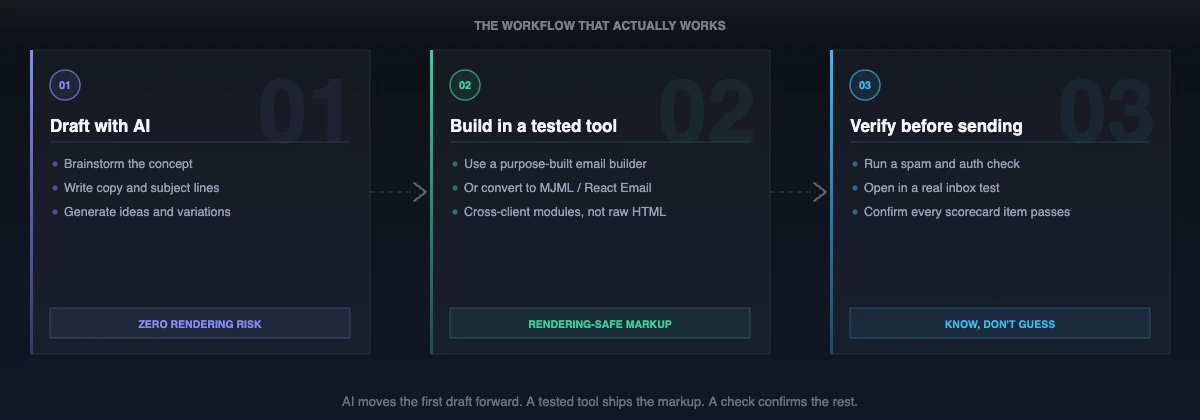
You do not have to choose between AI and a builder. The teams getting good results use both, in the right order.
Draft with AI
Brainstorm the concept, write the copy, and generate subject-line options. This is where models shine, and there is no rendering risk in a paragraph of text. Our ChatGPT prompt guide is built for this step.
Build the template in something tested
Drop that copy into a builder whose HTML is already validated across clients, or, if you code, convert the AI output to an email framework rather than shipping raw chatbot HTML. Frameworks share one move: a build step that transpiles friendly modern syntax into the nested-table, inlined, conditionally-commented HTML email clients actually support:
- MJML compiles its own component markup into responsive table-based HTML with inline styles
- React Email turns React and Tailwind into output tested across Gmail, Apple Mail, Outlook, and Yahoo
- Maizzle compiles Tailwind down to production HTML with styles inlined and
msoconditionals baked in
That translation step is precisely the work raw AI output skips.
Verify before you send
Run the finished email through a rendering and deliverability check, which is where you actually put it against the scorecard from earlier. Use the Unspam spam checker for authentication and content, and the inbox placement test to see where it lands at Gmail, Outlook, and Yahoo. Our five-minute pre-send check walks through the whole routine.
That sequence gives you AI's speed on the parts that are safe to speed up, and a tested foundation plus a final check on the parts that are not.
So, do you still need an email builder?
Yes, but the more useful question is why, and it looks different depending on where you sit in the production chain.
If you are an email designer
Your concern is brand fidelity: the headline font, the button shape, the dark-mode color swap, the spacing between sections. AI is useful at the brief stage, generating layout directions, iterating on visual concepts, testing a color story before you commit to building anything. But the moment the design needs to hold across real inboxes, the gap opens fast.
Fonts drop to Times New Roman in Outlook because the web font declaration was never wrapped to hide it from the Word engine. Rounded corners vanish because CSS border-radius is ignored. Background images disappear because the Word engine ignores CSS backgrounds, so your dark-brand header lands as a blank white box. A carefully spaced two-column layout collapses into a single stacked column because the structure was built on flexbox rather than nested tables. None of this shows up in the browser preview that made the AI output look finished.
A tested builder solves this at the module level. The components were already designed to carry brand elements through the clients that fight you: the button stays rounded because it uses VML, the background holds because there is a table cell color fallback, the layout stacks cleanly on mobile because the media query is written the right way. The AI vision is the brief. The builder is where the brief becomes something a subscriber can actually see.
If you are an email marketer
For a marketer, the question comes down to campaign outcomes. The data makes the cost of bad HTML concrete: across the emails checked through Unspam over the past twelve months, only 30% pass HTML best-practice checks, the lowest pass rate of anything we measure. Most campaigns go out with structural defects the sender did not know were there.
Those defects show up in your metrics. An email that renders broken lowers engagement because it looks wrong or is difficult to read. Lower engagement trains inbox filters to route future sends toward spam. A message clipped by Gmail because the markup crossed the 102KB limit hides the unsubscribe link, and frustrated subscribers hit "report spam" instead. One percentage point of inbox placement on a million-email send is a real revenue figure, and it compounds across every send after it.
AI makes marketers faster on everything that does not touch the markup: copy variants, subject line testing, personalization tokens, sequencing ideas. But the template needs to come from a tested foundation, because a fast draft that breaks in a third of inboxes is not actually faster. It is a faster path to a problem you will not see until the campaign is already out.
If you are an email developer
A developer already knows the answer, because they have written <!--[if mso]> blocks and debugged why a layout that renders cleanly in Chrome collapses in Outlook at 125% display scaling. The developer's version of the question is more precise: where in the pipeline does AI actually belong?
The useful framing is input versus output. AI belongs on the input side: drafting copy for the template, prototyping layout concepts before you build them, writing the plain-text version, and occasionally stubbing out a starting pass in MJML or React Email that you then clean up. The output, the HTML that actually goes to subscribers, needs to come from a framework or tested builder that already handles the Word engine fallbacks, the CSS inlining, the MSO conditionals, the accessibility baseline, and the file-size budget. What AI produces is a starting point. What ships is what survives a real cross-client render test.
Frameworks like MJML, React Email, and Maizzle are the developer's version of the same answer a builder gives a designer or marketer: a verified translation layer between an idea and an inbox.
The answer is the same from all three seats
Three roles, one conclusion. AI works at the language layer, browsers render at the web layer, and email clients operate at a third layer that neither of those fully understands. A purpose-built builder or framework is the translation between the AI draft and an inbox that receives it correctly.
Use AI for speed on the parts where speed is safe: ideas, copy, subject lines. Use the builder for the rendering where it is not. Run the pre-send check either way. A browser preview tells you an email looks finished, never that it renders. The builder, plus the check, is what closes that gap.
