

How to run a quick pre-send workflow using two free Unspam tools that catches authentication failures, content red flags, blacklist issues, and provider-specific filtering before your campaign reaches a single inbox.
Press play to load this video from YouTube (Google). See our cookie policy.
We made a 5-minute video showing both tools live on screen, step by step.
Watch on YouTube: youtube.com/@unspamemail
You have spent hours on your email campaign. The copy is sharp, the design is polished, the segmentation is dialed in. You are about to hit send. But have you checked whether the email will actually reach the inbox?
Most email marketers skip this step entirely. According to Validity’s 2025 Benchmark Report, roughly 1 in 6 legitimate marketing emails never reaches the inbox. Unspam’s 2025 Deliverability Report, based on millions of email tests, found that only about 60% of emails reach a visible mailbox location, even when they are technically “delivered.”
The good news: a 5-minute pre-send workflow using two tools catches the majority of issues before they reach your audience. In this article, we walk through exactly what to check, how to use both Unspam tools, and why making this a team habit is the single highest-ROI deliverability practice you can adopt.
Why most deliverability problems are preventable
Most email deliverability failures fall into a handful of categories that a quick pre-send test can catch:
- Broken authentication. SPF, DKIM, or DMARC misconfigured after a DNS change, ESP migration, or IT update. Gmail and Yahoo have required all three since February 2024, with Gmail ramping up full enforcement in November 2025. Microsoft followed in May 2025. This is more common than it looks: across the domains we test, 90% publish a valid SPF record and 87% sign mail with a working DKIM key, but only 58% publish a DMARC policy at all, leaving 42% of domains with none.
- Content triggers. Subject line red flags, HTML body structure issues, broken links, excessive images, or URL shorteners that correlate with phishing.
- Blacklist presence. Your sending IP or domain landed on Spamhaus, Barracuda, or another major DNS blacklist.
- Header misconfiguration. Missing List-Unsubscribe header (now required by Gmail for bulk senders), wrong reply-to address, or envelope sender misalignment.
- Provider-specific filtering. Your email passes every content check but still gets filtered to Spam at Gmail or Updates at Google Workspace because of engagement signals that only those providers track.
Every one of these is detectable in under 5 minutes with the right tools. The problem is that most teams never check. They send, hope for the best, and only investigate when open rates crater.
The 5-minute pre-send check: step by step
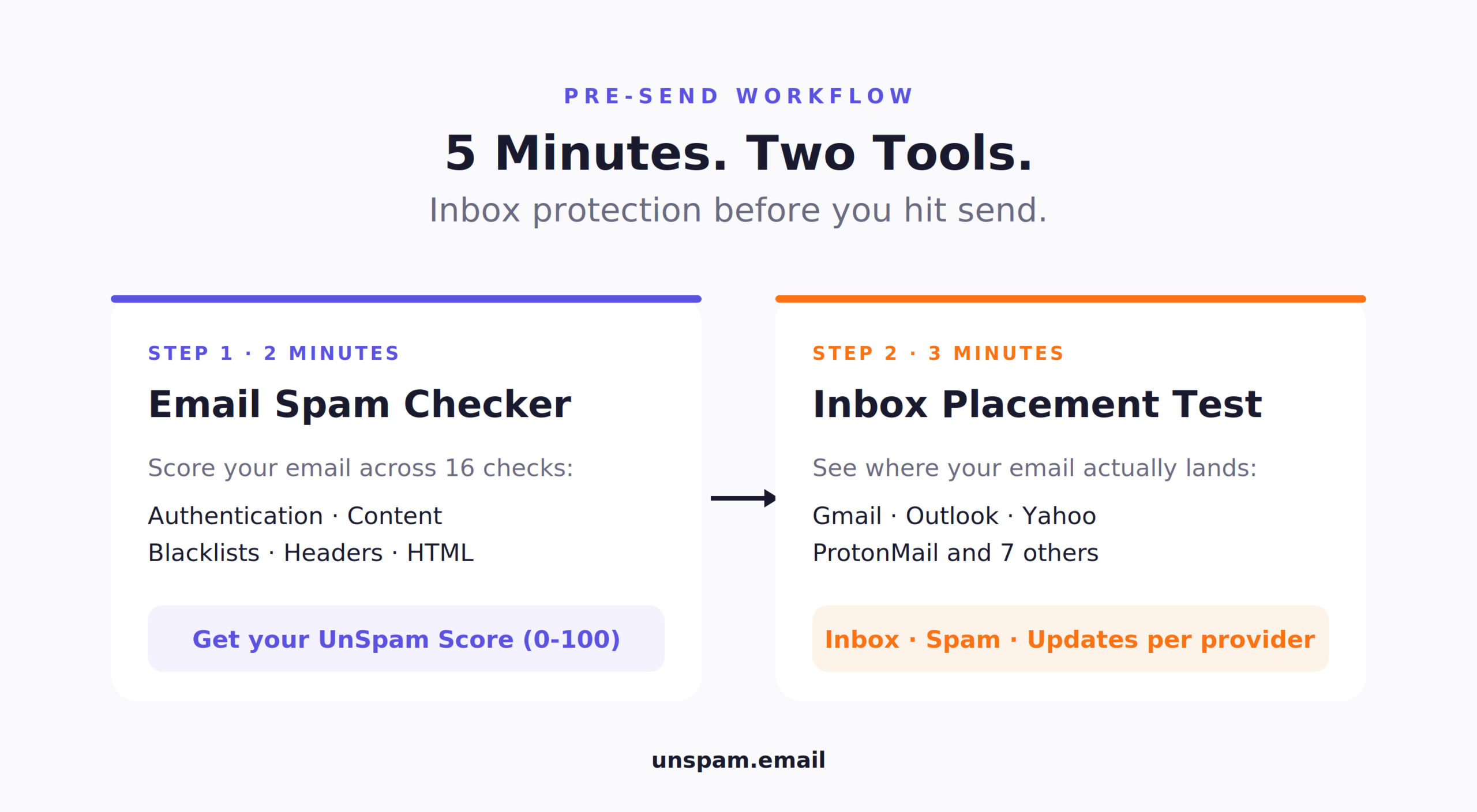
The full workflow takes about 5 minutes and uses two free Unspam tools: the Email Spam Checker for content and authentication, and the Inbox Placement tool for provider-specific results. If you have only ever run a single score test, this is a more complete, free Mail-Tester alternative that layers real provider placement on top of the content and authentication check.
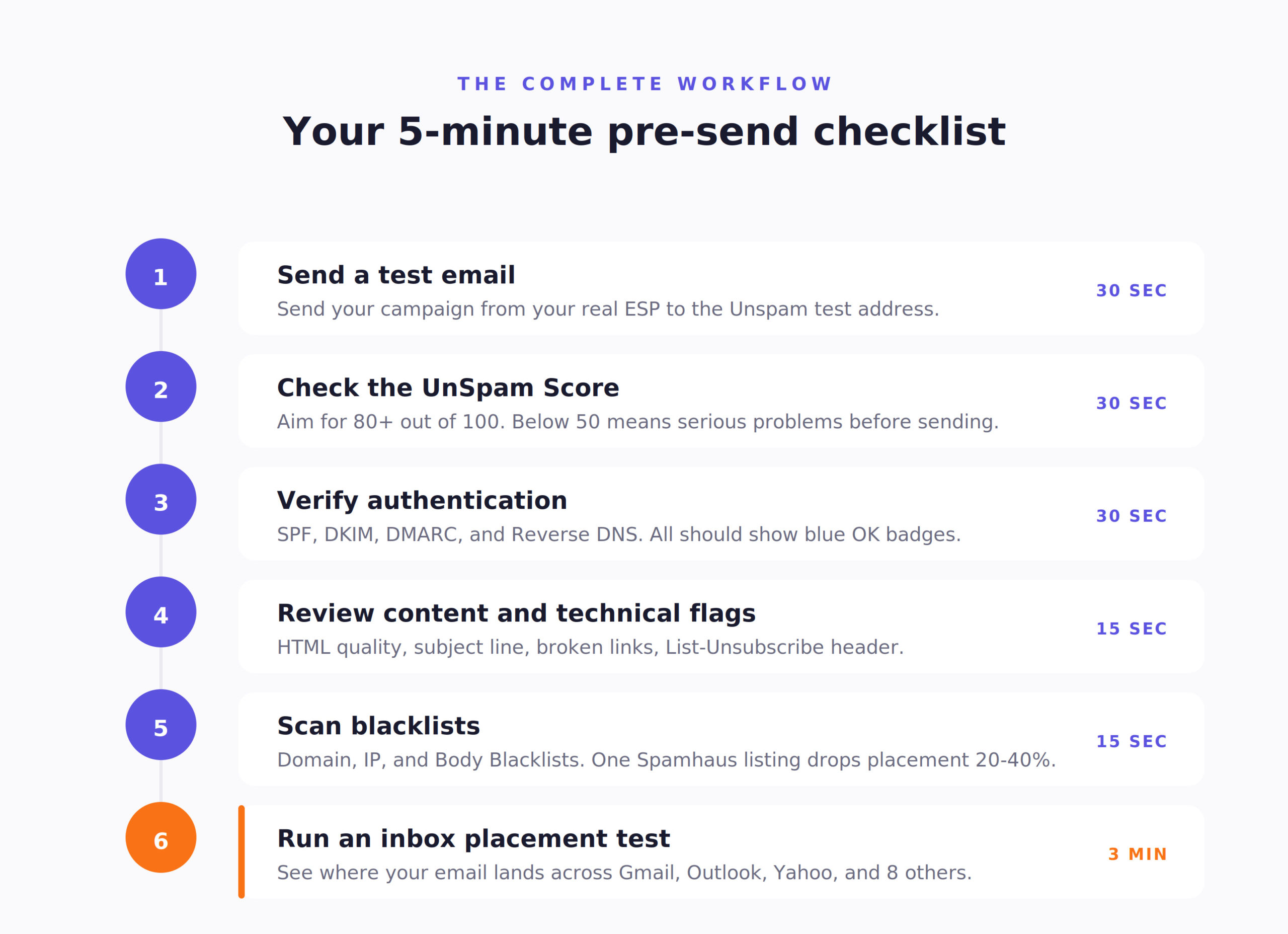
Step 1: Send your test email (30 seconds)
Go to Unspam.email and copy the unique test email address shown on the page. Send your campaign email to that address from your actual sending system: your ESP, marketing automation tool, or transactional email service. This ensures the test captures your real authentication setup, not a simulated version.
Step 2: Check your UnSpam Score (30 seconds)
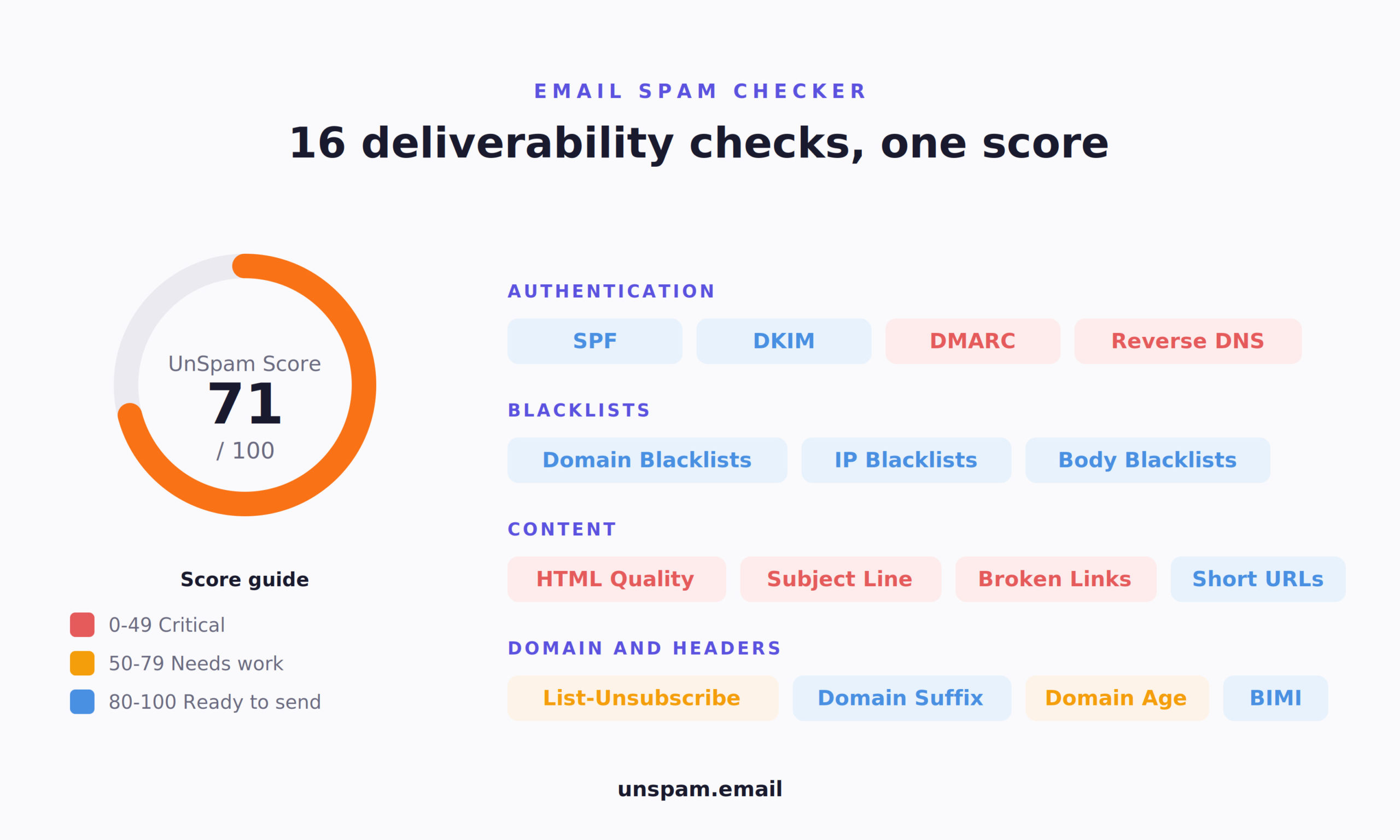
Within seconds, Unspam returns your results on the Overview tab. The first thing you see is your UnSpam Score out of 100. This is a composite deliverability score that evaluates your email across 16 different checks. A score above 80 means your email is in good shape. Between 50 and 80, there are issues to fix before sending. Below 50, your email has serious problems that will likely result in spam placement.
Step 3: Verify authentication (30 seconds)
Below the score, the results page lists each check as an expandable row with a clear status badge: blue “OK” means you passed, red “BAD” means there is a problem, and orange “WARN” means something needs attention. Look at three authentication checks in particular: SPF, DKIM, and DMARC. All three should show OK. If any shows BAD, click to expand that row for specific details. The tool also checks Reverse DNS and BIMI (Brand Indicators for Message Identification).
Step 4: Review content and technical flags (15 seconds)
Scroll through the remaining checks on the results page. Unspam evaluates your HTML Body Best Practices (structural issues, malformed code), Subject Line quality, Broken Links, Body Blacklists, Short URLs, and Accessibility Checking. Each row shows OK, BAD, or WARN with expandable details. The tool also checks your List-Unsubscribe Header (required by Gmail for bulk senders since 2024), Domain Age, and Domain Suffix. This last one trips up a lot of senders: in our benchmark data, only 14% pass the one-click List-Unsubscribe requirement. The same report includes a Device Previews tab, so you can preview your email across 50+ real clients in light and dark mode without leaving the results page.
Step 5: Scan blacklists (15 seconds)
At the top of the results list, you will find two blacklist checks: Domain Blacklists and IP Blacklists. These scan your sending domain and IP against major DNS-based blacklists including Spamhaus, Barracuda, SORBS, and Proofpoint. A single listing can drop your inbox placement by 20-40% across multiple providers, and it is more common than most senders assume: across the sending IPs we test, 3% turn up on an IP blacklist.
Step 6: Check inbox placement across real providers (3 minutes)
This is where the real insight happens. Your UnSpam Score might be perfect, your authentication might all show OK, and your content might have zero flags. But none of that tells you where your email actually lands in your subscribers’ inboxes. The inbox placement test answers that question directly.
To run this test, go to Unspam’s Inbox Placement tool and send your email to the provided seed list. Each address belongs to a real mailbox at a different provider: Gmail, Outlook, Yahoo, and others. Within minutes, you get a results table showing every provider, the placement result, and key details.
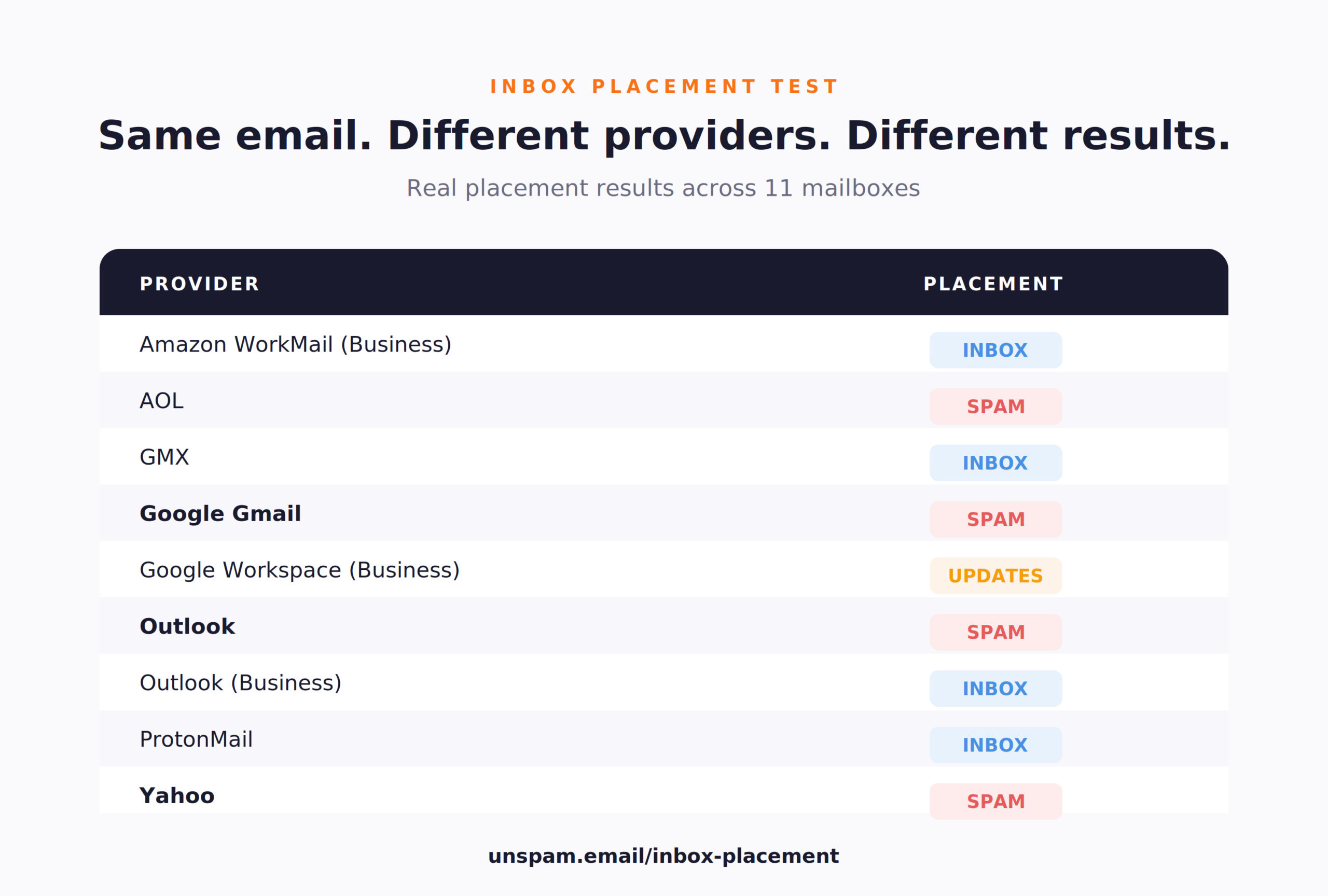
This is where you discover problems that no spam checker can detect. In the example above, the same email with the same sending IP can land in the Inbox at some providers while going straight to Spam at others like Gmail, Outlook, Yahoo, and AOL. Google Workspace might route it to the Updates tab instead of the Primary inbox. Each provider evaluates your email differently based on its own reputation data, engagement signals, and filtering algorithms.
According to Validity’s 2025 data, Microsoft Outlook has an average inbox placement rate of just 75.6%, with spam rates exceeding 14%, the highest among major providers. Run inbox placement tests before every campaign and at least weekly for ongoing automated flows.
What to do when the test finds problems
If your UnSpam Score is below 80 or any authentication check shows BAD, do not send the campaign. Here is the triage framework:
| Problem | Fix time | Action |
|---|---|---|
| SPF/DKIM/DMARC fail | 30 min to 24 hours | Fix DNS records. Do not send until all show OK. |
| UnSpam Score 50 to 80 | 15 minutes | Fix BAD items. Remove trigger words, reduce images. |
| UnSpam Score below 50 | 30 minutes | Multiple BAD checks. Major fixes needed. |
| Blacklisted IP | 24 to 72 hours | Request delisting. Switch IP if shared. |
| Blacklisted domain | 1 to 2 weeks | Investigate root cause. May need consulting. |
| Missing List-Unsubscribe | 5 minutes | Add header in your ESP settings. |
| Broken links | 5 minutes | Fix or remove. Broken links signal low quality. |
| Spam at Outlook only | 1 to 2 weeks | Check SNDS. Engagement-based. May need warmup. |
| Updates tab at Gmail | Ongoing | Adjust content. Plain text and replies help. |
For problems beyond a quick fix, such as persistent blacklisting, reputation decay, or multi-service authentication gaps, the Unspam consulting team can diagnose root causes and implement remediation. Fixing complex deliverability issues often requires deeper work: contacting providers directly, building sender reputation over time, adjusting engagement signals, and sometimes working with ISP postmaster teams.
Making it a team habit
The teams with the best inbox placement rates build spam testing and inbox placement testing into their process:
- Before every campaign: run every email through the Unspam spam checker. No exceptions.
- Weekly inbox placement test: verify where your emails land across Gmail, Outlook, Yahoo, and others. Catch ISP-specific filtering before it compounds.
- After any DNS or ESP change: run both a spam test AND an inbox placement test immediately. Authentication breaks silently.
- Weekly for automated flows: transactional and automated emails drift too. Test your welcome sequence and drip campaigns weekly.
- Share results with the team: include both the UnSpam Score report and inbox placement results in your campaign sign-off process.
Beyond the pre-send moment, schedule a recurring email health check so authentication, blacklist status, and reputation get monitored even when no campaign is going out.
The 5-minute investment pays for itself immediately. At $36 average return per $1 spent on email marketing (Litmus 2025), even a 1% improvement in inbox placement on a 100,000-subscriber list translates to meaningful revenue.
Key email deliverability statistics for 2025-2026
| $36 average return per $1 spent on email (Litmus 2025) | 16.9% of legitimate emails never reach inbox (Validity 2025) | ~60% reach visible mailbox across providers (Unspam 2025) |
|---|---|---|
| 2.7x better inbox with full SPF/DKIM/DMARC | 20-40% inbox drop from a single Spamhaus blacklisting | 5 min total time for the complete workflow |
Are these Unspam tools free to use?
Yes. Both the spam checker and the inbox placement test are free to try. The spam checker tests authentication, content, score, and blacklists in about 2 minutes. Adding an inbox placement test across 11 providers brings the total to about 5 minutes.
Do I need to test every single email I send?
Test every campaign and every significant template change with the spam checker. Run the inbox placement test before every major send and at least weekly for automated flows. The goal is to catch problems before they reach your audience.
What if my UnSpam Score is between 50 and 80?
Expand each BAD and WARN row to see specific issues. Fix the BAD items first: reduce image-to-text ratio, remove URL shorteners, fix broken links, and address HTML structure issues. Re-test after changes and aim for 80+.
What if my spam score is clean but my emails still land in Spam at Gmail?
This is exactly why inbox placement testing exists. A clean spam score means your content and authentication are fine, but Gmail may be filtering you based on sender reputation, engagement history, or domain-specific signals. Run an inbox placement test to confirm, then contact the Unspam consulting team for help with reputation recovery.
Can I test emails sent from any ESP or marketing tool?
Yes. You send the test email from your actual sending system, which means the test captures your real authentication setup, IP reputation, and content exactly as your recipients will receive it.
Bottom line
Five minutes. That is all it takes to catch the issues that cause 1 in 6 emails to miss the inbox. Run your email through Unspam.email before every send. Check your UnSpam Score, verify authentication, review content flags, scan blacklists, and run an inbox placement test across real providers. Make it a habit. It is the single highest-ROI practice you can add to your email workflow.
If you want to see this entire workflow in action, watch the video walkthrough on the Unspam YouTube channel.
