

Your campaign report fills up with bounces that all say the same thing: 550 permanent failure for one or more recipients (someone@company.com:blocked). No reason, no link to appeal, no hint of what to change.
The direct answer first: this bounce means a spam filtering gateway in front of the recipient's mail server refused your message, and the exact wording is the signature of one vendor: Barracuda. The blocked verdict is about reputation or policy, not about a bad address. This guide decodes each part of the message, shows how to find out in two minutes whether the problem is one company's filter or a blocklist listing that affects everyone, and walks through the fix for every cause, including the removal request that clears most cases within hours.
What the bounce is telling you
Most bounce messages are written by the receiving mail server. This one is written by a security appliance standing in front of it, and every part of the string carries information:
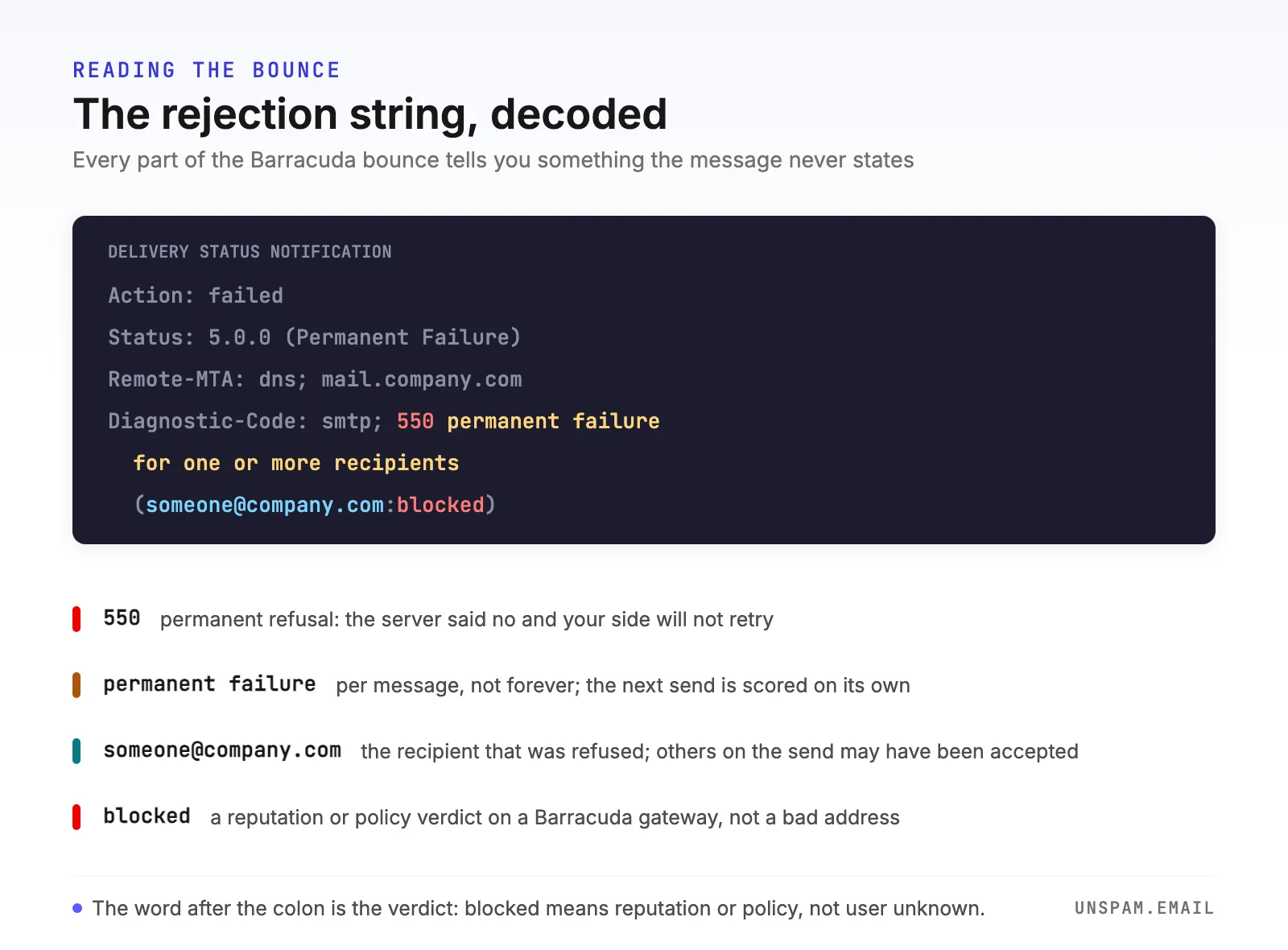
550 is the SMTP reply code. Codes starting with 5 are permanent failures: the server refused the message and instructed your side not to retry. That is the difference from a 4xx soft bounce, which means try again later.
"permanent failure for one or more recipients" is how the gateway reports that at least one address on the message was refused. If you sent to several people at the same company, some may have been accepted while this one was not.
(someone@company.com:blocked) is the useful part. The gateway names the recipient it refused and the verdict after the colon. blocked means the message was stopped by a reputation or policy decision: your sending IP, your domain, something in the content, or a rule the recipient's administrator set. It does not mean the mailbox is unknown or full; those failures produce different bounce texts. If you are used to reading mailbox-provider bounces, Gmail's bounce messages spell out their reasons in comparative detail; Barracuda's one word is all you get.
This phrasing is the characteristic rejection of the Barracuda Email Security Gateway and its cloud successor, Email Gateway Defense: appliances and services that companies place in front of their mail servers to filter inbound email. When you hit this bounce, you now know two things the message never states: the recipient's organization filters with Barracuda, and Barracuda decided your message was not wanted.
One quirk I always point out before anyone panics: despite the word permanent, the verdict is per message. The refused email is gone and will not be retried, but the gateway evaluates every new message on its own, so the same recipient can receive your next send if the cause is fixed.
Find out which problem you have, in two minutes
Everything about the fix depends on one question: is this a single organization blocking you, or are you on a blocklist that every Barracuda gateway consults?
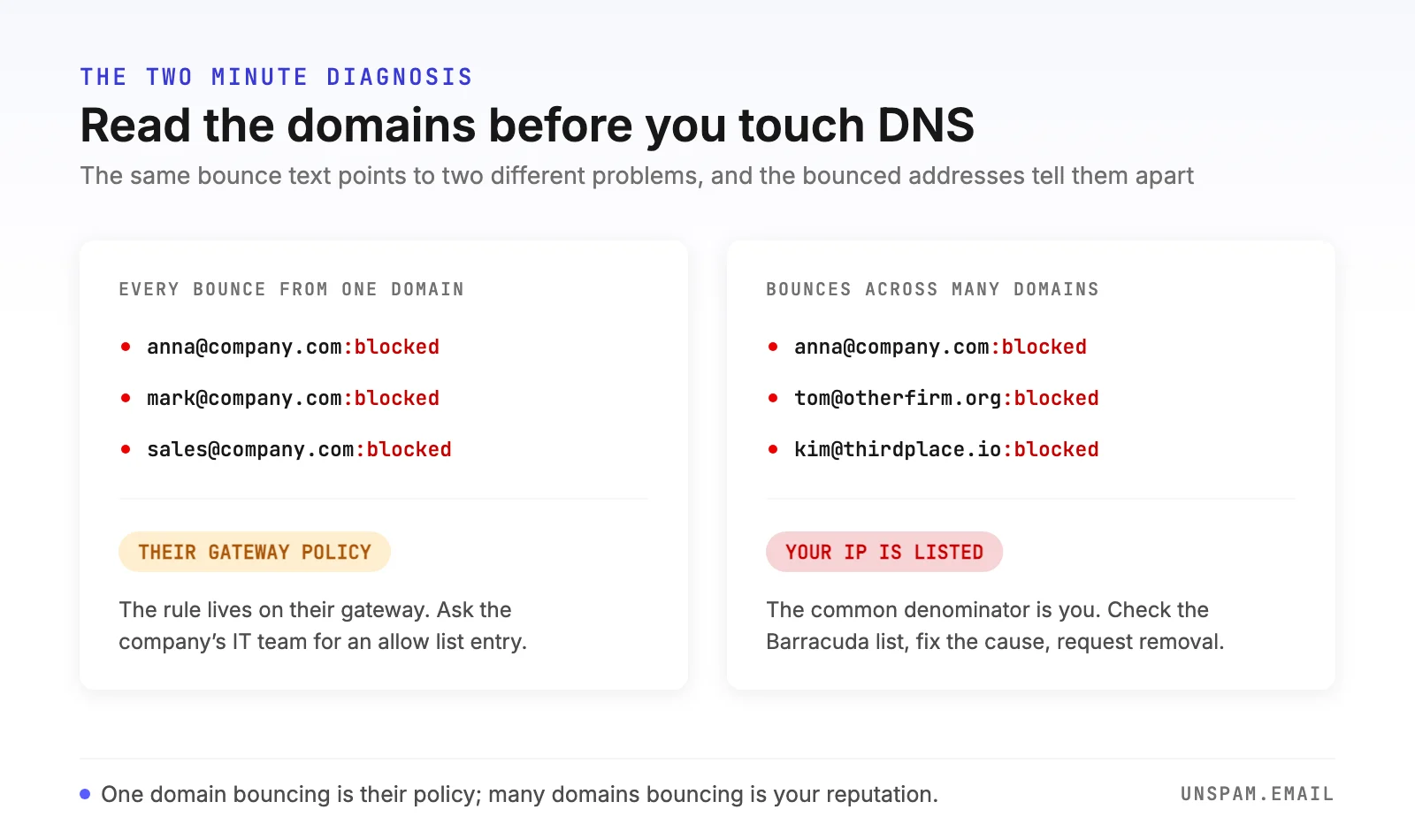
Collect the bounced addresses from your last send and look at the domains.
If every bounce belongs to one domain, the problem is local to that company. Their Barracuda has a policy that stops you: an administrator may have blocked your address, your domain, or your IP range, or their filter scored your message as spam under settings stricter than everyone else's. Nothing you change on your side is guaranteed to help, because the rule lives on their box. The fix is human: contact someone at the company through another channel and ask their IT team to add your sending domain to the gateway's allow list.
If the bounces span many unrelated domains, the common denominator is you, and the first suspect is the Barracuda Reputation Block List (BRBL), the public DNS blocklist at b.barracudacentral.org that Barracuda gateways consult out of the box. Find your sending IP, either in your ESP's settings or in the Received headers of a message that did deliver, and run it through the free IP blocklist checker, which queries the Barracuda zone on demand along with the other lists that matter and links the removal form for any hit. Check your domain too with the domain blocklist checker, since Barracuda's content analysis also acts on domain reputation. The odds favor the IP: across the checks run through Unspam, 6% of sending IPs sit on at least one blocklist, while flagged sending domains are rare at 0.30%.
If instead of bouncing your mail simply vanishes, that is a different investigation: see why your email is not being delivered.
The five causes, from most to least common
The order below is the one I keep running into, so start at the top and stop when the evidence fits.
| # | Cause | The tell | Fix in one line |
|---|---|---|---|
| 1 | Your IP is on the BRBL | Bounces across many domains; checker shows the listing | Fix the cause, then request removal |
| 2 | A domain in your message body is flagged | IP is clean but sends with certain links bounce | Audit every linked domain, including tracking |
| 3 | The recipient's admin blocked you | Bounces from one domain only | Ask their IT team for an allow list entry |
| 4 | The message scored as spam | Intermittent blocks, content-dependent | Test the message before sending |
| 5 | Weak or missing authentication | Auth failures visible in delivered headers | Align SPF and DKIM with your domain |
1. Your sending IP is on the Barracuda Reputation Block List
The BRBL is fed automatically: spam trap hits, honeypot data, and spam reports put IPs on it without any human deciding your fate. Shared sending pools make this worse, because a bad neighbor on the same ESP IP can earn a listing that bounces your mail too.
The fix is Barracuda's removal request form at barracudacentral.org. It asks for the mail server IP, a contact email, and a phone number, and gives you a reason field: use it to say briefly what caused the listing and what you changed. Barracuda processes requests with a valid explanation typically within 12 hours. Two rules from the form itself: requests without valid information are ignored, and duplicate submissions are ignored too, so send one complete request rather than ten hopeful ones. And fix the cause first; the listing process is automated, so an unfixed cause means an automatic relisting.
2. A domain in your message body is flagged
Barracuda runs what it calls intent analysis: every domain linked in the body is checked against its own reputation database, and one poor-reputation domain is enough to block the whole message. Your IP can be spotless and the bounce still fires because of a link in your footer, a URL shortener, or the shared click-tracking domain your ESP wraps links with, a problem that deserves its own read: how link tracking affects deliverability.
This one is an inventory job. Audit every domain your message links to, including the ones your ESP adds: replace shorteners with full URLs, use a branded tracking domain instead of the shared default, and drop or replace any linked site with a shady history.
3. The recipient's administrator blocked you
Barracuda gateways let each organization keep local block lists of addresses, domains, and IPs, and administrators use them. If a few recipients at one company marked your newsletters as spam, the admin may have blocked the whole sending domain.
Nothing in DNS helps here; this one is pure diplomacy. Reach a real person at the organization by phone or another address and ask their IT team to review the block. Arrive with your homework done: authentication in order, a clean listing status, and a reason the recipients want your mail.
4. The message itself scored as spam
Beyond lists and links, the gateway scores each message's content. Aggressive subject lines, heavy image-to-text ratios, and sloppy HTML all push the score toward the block threshold, and each organization sets its own thresholds, which is why the same campaign can pass one Barracuda and bounce at another.
Stop guessing what filters make of your message. Run the spam test before the campaign goes out: it scores the exact message with SpamAssassin, checks your IP and domain against the blocklists including Barracuda's, and verifies authentication, so the problems surface in a report instead of a bounce.
5. Weak or missing authentication
Barracuda weighs SPF, DKIM, and DMARC results in its scoring, and administrators can configure hard blocks on failures. Authentication that fails, or passes for your ESP's domain instead of yours, removes the one signal that separates you from a spoofer, and a sender that cannot be verified inherits the worst assumptions. Your sender reputation is built on these signals over time.
Verify the standard three instead of assuming them: run your domain through the SPF checker and DMARC checker, and make sure DKIM signs with your domain, not the ESP's shared key.
The repair sequence
When the bounce hits mid-campaign, this is the order I work in:
- Read the bounces. Collect the failed addresses and split them by domain. One domain means a local policy; many domains mean a listing or content problem.
- Check the lists. Run your sending IP and domain through the blocklist checkers. A BRBL hit explains everything and gives you the removal path.
- Fix the cause before requesting removal. Clean the list segment that bounced, remove the flagged link, or fix the authentication gap, whichever the evidence points to. Removal without repair buys you days at most.
- Submit one complete removal request. IP, contact details, and an honest explanation of what you fixed. Then wait; most valid requests clear within 12 hours, and duplicates are ignored.
- Handle single-company blocks by asking. For domains that still bounce after delisting, contact the organization and request an allow list entry.
- Test before the next send. A pre-send check catches a relisting, a flagged link, or a broken DKIM signature while it is still cheap to fix.
Keep it from coming back
The bounce is a symptom; the disease is whatever taught Barracuda's systems to distrust you. Long term, three habits keep the string out of your reports. Keep the list clean, because spam traps and dead addresses are what feed automated blocklists, and a rising bounce rate is the early warning. Verify new addresses before they enter the list with an email verifier rather than after they bounce. And make pre-send testing part of the workflow: Unspam checks your message against the blocklists, the authentication checks, and a real spam filter in one pass, so the next 550 permanent failure is a line in a test report you fix quietly, not a hole in a campaign you explain to your boss.
