

Want to determine the root cause of why your hand-crafted, hyper-personalized, and perfectly-segmented digital newsletter has ended up in the spam folder or not being delivered at all to your Microsoft users?
Poor email deliverability is a common problem for many companies across sectors. To make matters worse, it could be a challenge to understand the cause behind it, as many reasons might erase obstacles in an email marketer’s path to successful outreach and splendid campaign metrics in Outlook or Hotmail.
For instance, it could be Microsoft’s rigorous anti-spam algorithms that halt activity, the low sender’s score, or blacklisting, as getting under the radar of anti-spam regulatory bodies can have numerous detrimental repercussions for senders. Blacklisting is rarer than many senders fear but far from trivial: across the sending IPs we test, 6% appear on an IP blacklist while 94% stay clean. Before you ever reach SNDS, it is worth running your sending IP through an IP blacklist checker to rule out the most obvious cause of poor delivery. It could even be poor engagement with subscribers who might register complaints or move your email into a spam folder by default.
The good news is that with the right instrument, you may overcome this challenge by defining the root of your poor email deliverability and adjusting your campaign accordingly to ensure it reaches your goals next time. There are many tools for this job, but when it comes to Microsoft users, there is no better way to surface issues with your email campaigns than to use Microsoft Smart Network Data Services.
What Is Microsoft Smart Network Data Services (SNDS)?
Microsoft Smart Network Data Service (also known as SNDS) is a powerful platform created by Microsoft to assist email marketers in their endeavors. It is a free service that provides useful and, most importantly, relevant insights into email campaign performance, such as email traffic, delivery, and sender reputation.
Much like Postmaster by Google or Unspam, it surfaces hidden issues and helps marketers resolve them based on powerful scanning and an analytical core to ensure high-impact outreach and meaningful and productive communication between senders and recipients. It is a great tool for analyzing subscribers who use Microsoft-related services such as Outlook.com, Hotmail, or Live.com.
What Metrics SNDS Gauges?
Microsoft SNDS aims to provide a broad picture of an IP’s mail-sending behavior. Therefore, by introducing it into your email marketing routine, companies might gauge and correctly assess multiple key email performance metrics.
In general, SNDS gives insights into IP address health, Mail data, Virus-infected mail, Malware hosting, and Open Proxy Status. In email marketing, you might be interested primarily in IP’s health and Mail data, which covers analytics about the activity period, traffic data (RCPT commands, DATA commands, and Message recipients), and junk mail data (Filter results and complaint reports)
To be more precise, with SNDS, you might get relevant knowledge about such useful email metrics as:
- Spam Rate, which demonstrates the percentage of emails that raised spam filters or were put in the spam folder by users.
- Spam Complaint Rate, which demonstrates the number of complaints registered against your communication.
- Bounce Rate, which demonstrates the percentage of emails that were not delivered and returned to the sender for temporary or permanent reasons.
- Email Volume, which demonstrates the number of messages sent from your IPs to all Microsoft accounts.
- The Filtering Score, which demonstrates the filter result for your messages sent only to Microsoft accounts.
- The IP Reputation, which directly correlates with the sender’s score and demonstrates whether Microsoft considers the brand reliable.
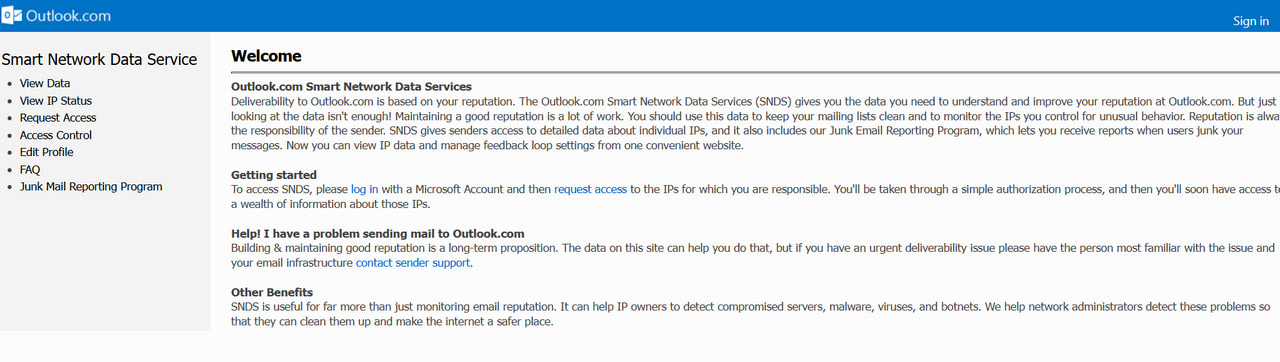
Microsoft Smart Network Data Service
Reasons to Use Microsoft SNDS
The main reason to use SNDS is that Microsoft has a large email market share. It ranks among the top three most popular email providers in the U.S. and Europe, so you might have many subscribers who rely on their services. There is no better way to understand the cause of your poor email deliverability with Outlook or Hotmail users than to use SNDS.
Another good reason is that SNDS provides relevant, actionable data that encourages well-informed and accurate decisions in your email campaigns. It could be a reliable data source for better email deliverability, higher engagement, positive response from subscribers, and ipso facto better ROI and enhanced company score and reputation. To put your own numbers in context, the current global email deliverability health score sits at 88 out of 100, so a healthy IP reputation in SNDS should track closely with that benchmark.
Finally, the service could detect compromised servers, botnets, viruses, and malicious activity. With that, your company might proactively participate in the email channel, fighting malicious actors and keeping the ecosystem and communication safe.
How to Get Access to Microsoft Smart Network Data Service?
To start using Microsoft SNDS in your email marketing, companies need to get access to the platform. This procedure is straightforward and does not demand special technical skills, but it requires performing several important steps.
First and foremost, companies must verify their IP address ownership, which is essential for gaining access to SNDS data. For this, they must be registered with the trusted abuse contact. Using the WHOIS lookup tool, they must check and retrieve the registration of their IP, such as registration date, location, and network details, and ensure everything is correct and legitimate.
If companies use professional email marketing platforms that provide them with IP addresses, they might contact the corresponding support team and resolve this question with them.
Afterward, companies may proceed with Microsoft registration. This involves the following basic steps:
Navigate to the Microsoft Smart Network Data Service portal. Log in with your credentials by entering your email or phone number and then your password. If you do not have a Microsoft account, please go to their portal and create a new account by following their prompts. Microsoft moved this portal in 2026: the long-standing address under sendersupport.olc.protection.outlook.com now redirects here, and automated access URLs on that old host were deprecated on 22 June 2026, so a script still pointing at them needs updating.
After entering Microsoft SNDS, the user must request access to the network for which it is responsible. Go to the request page and enter the IP address you want to track and inspect. You may add it in four formats: single IP address, range of IP addresses, CIDR, and ASN. Choose the one that fits you best. If you manage more than one IP address, you need to enter them all.
Note that you can use multiple IP requests if you are uncomfortable adding a range of IP addresses. Another important thing to remember is that the authorization process happens automatically. Therefore, errors might occur. Please refer any questions to the FAQ page or report an issue and wait until it is resolved.
During the authorization process, the system fetches IP address registration details from two data sources, reverse DNS and WHOIS, to confirm ownership. Therefore, it is crucial to ensure everything is correct with them beforehand. Reverse DNS is a low bar most senders already clear, our benchmark data shows 99% of sending IPs we test have valid reverse DNS, so the 1% that lack it tend to stumble right here.
As a company might have multiple IP addresses, it might see not one but the list of email addresses on the next page for confirmation purposes. Choose the email address, log in, and verify your ownership by clicking on the link in the confirmation email sent by Microsoft. Only after successful receipt of the authorization email, does the SNDS grant a user access to the system and all the subnets advertised by that ASN.
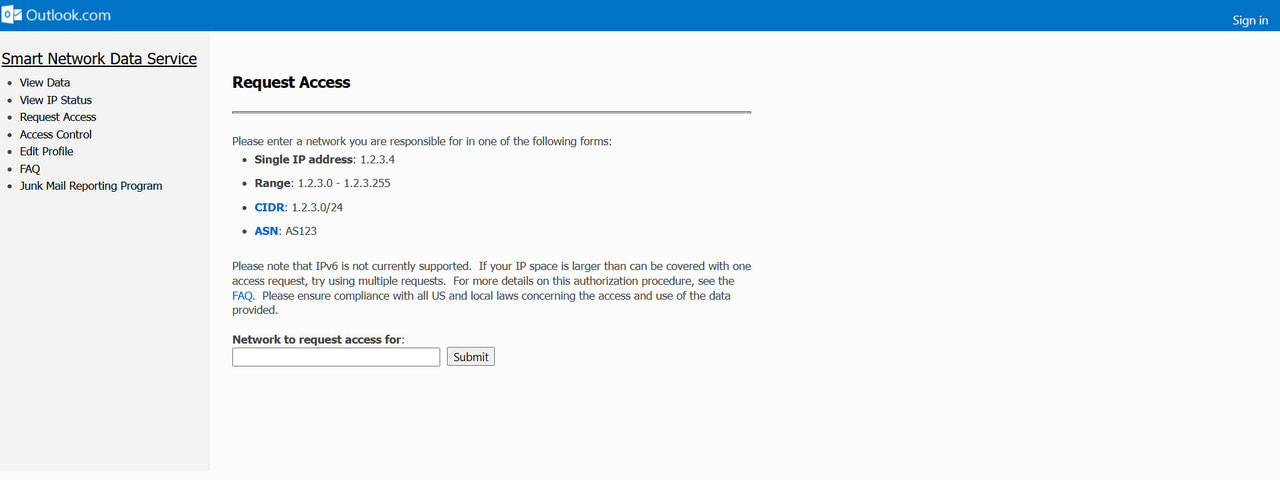
Request Access Tab in Microsoft SNDS
How to Check Microsoft Smart Network Data Services?
As a tool that provides accurate real-time insights into the email activity of a company’s IP addresses across Microsoft platforms, it offers an extensive data source for tracking and analyzing the health of IP and email marketing strategy. Therefore, the first thing to do is to examine the IP status tab, which fetches all essential information to improve outreach and communication with Microsoft users. Here are the basic steps:
Enter your Microsoft account and navigate to SNDS. It should be accessible by this address: Settings > Email Services > Postmaster Tools > Microsoft SNDS. On the page, you will see a list of authorized IP addresses with basic metrics such as Filter Results, Blocked Status, and Complaint Rate. Choose the one that you want to inspect closely.
By clicking View Details, you might get detailed information about the selected IP address, including Activity Period, RCPT Commands, DATA Commands, Spam Rate, and Complaint Rate.
You can download a CSV report and export the details to analyze data through other tools.
When working in SNDS, it is crucial to inspect these metrics:
- IP Reputation
- Filter Results
- Blocked Status
- Complaint Rate
- RCPT Commands and DATA Commands
How to Interpret Data?
Here is a quick breakdown of how to interpret data from SNDS.
IP Reputation
The biggest advantage of SNDS is that companies may assess IP health. While Microsoft secretly calculates it through its internal algorithms, it still provides companies with the data to understand it. The system uses a color-coded method to indicate trustworthiness. There are three statuses:
- Green means a high reputation. Microsoft trusts your email communication with its clients.
- Yellow means a moderate yet still positive reputation. Therefore, you might occasionally experience issues with email delivery.
- Red means poor reputation. Microsoft services are likely to reject or block your email outreach.
Filter Results
Another area to examine is the Filter Results, which contain information about spam rates and complaints registered by Microsoft users against your email communication. Note that it is perfectly fine to have spam complaints, as many factors influence these metrics. However, their amount must stay within industry benchmarks and ESP standards.
Microsoft publishes no acceptable figure for Filter Results, so treat any threshold you see quoted, 10% included, as a working benchmark rather than a Microsoft rule. What the panel does tell you reliably is the direction of travel: a filter result that stays low and steady means your mail mostly bypasses the spam filters, and that is the signal of a healthy sender reputation.
A filter result that climbs above that mark, or well above where it usually sits, points at a problem with the mail itself: more of it is being classified as spam than before.
As for the complaint rate, the bands people use come from Google’s published thresholds rather than from Microsoft:
- A complaint rate below 0.1%. This is considered good, as your subscribers are engaged and satisfied with your communication in general.
- A complaint rate higher than 0.1%. The growth of this metric indicates problems with your communication, email content, and delivery methods. It might also damage your sender’s score and reputation.
Finally, pay attention to Red Days. This metric indicates the days a company’s email activity has triggered spam filters.
- Red Days = 0. Your emails have landed in the inbox folder.
- Red Days > 0. During this period, your emails had higher spam rates or deliverability issues.
This information helps you to analyze and adjust your communication patterns and cadence.
Blocked Status
Blocked status is imperative as it demonstrates IP restrictions and limitations in email channel activity. There are two possible outcomes:
Blocked Status: No means your IP address can send emails without limitations, as Microsoft services do not block it.
Blocked Status: Yes means your IP address is blocked and restricted from activity in the email channel. It is crucial to inspect this issue thoroughly, resolve the root of the problem, and recover your presence in the channel.
Trap Hits, Removed in July 2026
As spam traps can make it into even perfectly clean and regularly maintained subscription lists, many companies stumble upon them. Meeting just a small number of honeypots is acceptable by ISPs and ESPs. However, when this number starts to grow, a company risks being marked as a malicious actor and getting blacklisted or halted in the email channel due to violation of laws or adaptation of poor email marketing practices.
Microsoft removed trap hit counts from the SNDS Data Report on 22 July 2026, describing the change as part of its work to protect the integrity of its anti-abuse systems. It warned at the same time that values reported during the transition may differ from earlier reports and should not be read as exact. Any guide that still tells you to watch this column, including earlier versions of this one, is describing a field that is no longer there. Watch Filter Results and Complaint Rate instead, and treat list hygiene as the thing that prevents trap hits rather than the number that used to report them.
RCPT Commands and DATA Commands
Both indicators describe the company’s email activity, which helps to ensure sending volumes does not intimidate your subscribers and email service providers. This is especially critical for companies in the warming-up stage.
- RCPT Commands show the total number of subscribers who received your emails.
- DATA Commands show the total number of messages transmitted by your IP address.
Amplify Microsoft Smart Network Data Services with Unspam
One of the best ways to amplify your activity in Microsoft Smart Network Data Services is to use it with Unspam. As one of the most reliable Email Spam checkers and Deliverability Test tools on the web, it reveals hidden issues with email campaigns, which SNDS omits, and helps email marketers make relevant and accurate decisions.
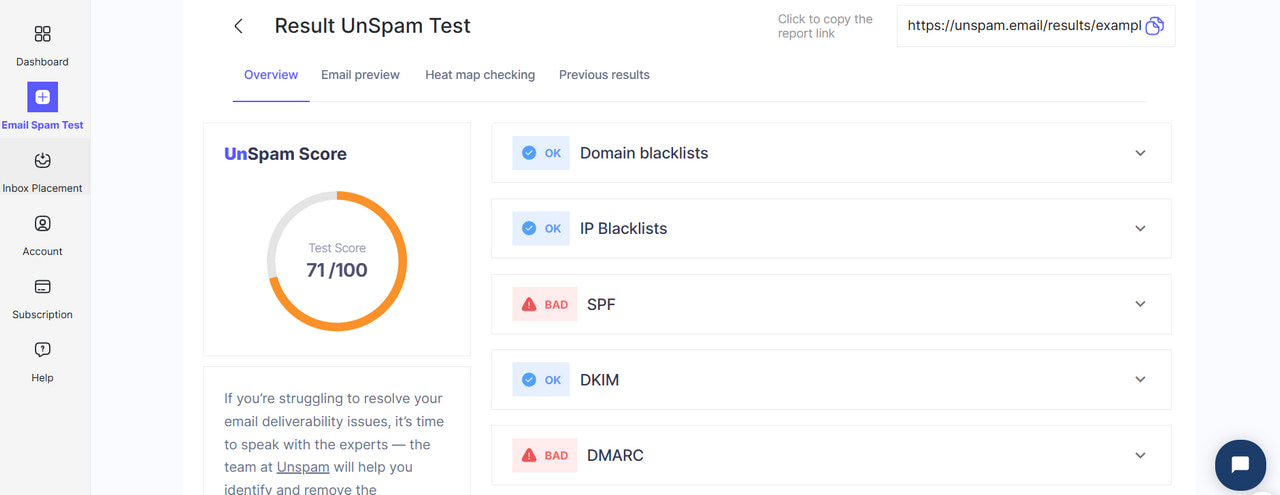
For instance, Unspam closely inspects the technical side of an email newsletter, particularly authentication. It ensures your SPF, DKIM, and DMARC records are relevant and set correctly. It also thoroughly scans the content that is critical to users’ engagement. Testing it against the best practices in the niche, Unspam surfaces many faux pas and critical elements such as text-to-image ratio, obfuscated text, broken links, and pushy language that might ruin message delivery and hurt the sender’s score and reputation by causing spam and complaints.
Conclusion
SNDS is a free online service created to help email marketers inspect and analyze their communication with Microsoft users. Like Google’s Postmaster, it collects crucial information about email campaigns (Filter Results or Blocked Status) and a company’s activity in the email channel (RCPT Commands and DATA Commands) that senders might use to improve their email marketing strategies and campaigns, as well as enhance interactions with the target audience.
Using SNDS is easy. All you need to do is join the system through your Microsoft account and prove your IP ownership through the basic routine. The navigation is straightforward, and metrics are clearly represented. You may also download the collected data in CSV format and analyze it further. If you have poor results, check out our guide on how to fix email deliverability issues with Outlook.
To amplify your experience with SNDS and get even more accurate real-time data about your campaigns, other services like Unspam are highly recommended for checking deliverability and spam testing. Pairing SNDS with continuous deliverability monitoring also means you catch reputation dips as they happen rather than days later when delivery has already suffered. An automatic spam test adds the message side of that picture, re-scoring authentication, blocklist status and content on the cadence you set. Together, they provide companies with a comprehensive inspection of body content, technical side, key email performance metrics, and email channel activity that are vital for making informed decisions and introducing necessary improvements for boosting engagement and retention.
