

Do you know that invalid email addresses in your subscription list can be dangerous? Not only do they ruin your key email performance metrics as you reach fewer recipients, but most importantly, they hurt you as a sender. Causing hard bounces, these email contacts bring multiple detrimental effects to your email marketing presence. They damage your sender’s score, brand’s reputation, and customer engagement, as well as cause wasted investments and a decline in ROI and revenue.
In most drastic situations, they might even result in potential penalties from ISPs and email service providers or get the sender blacklisted, which would halt the company’s activity in the channel completely and require time, money, and human resources for recovery.
Luckily, you can avoid these drastic repercussions by identifying incorrect contacts in your database in time and removing them in case they cannot be remedied. Several time-proven methods exist, such as checking the syntax, using specialized verification instruments, sending a test email, checking the domain’s IP address, searching the contact’s address in Google or social media, and pinging it. Each one has its own merits.
Today, we are going to discuss email pinging as one of the most popular ways to check email address validity. Although it lies a bit on the technical side and requires some knowledge of server operations, you can do it on your own with our guide.
What Is an Email Pinging?
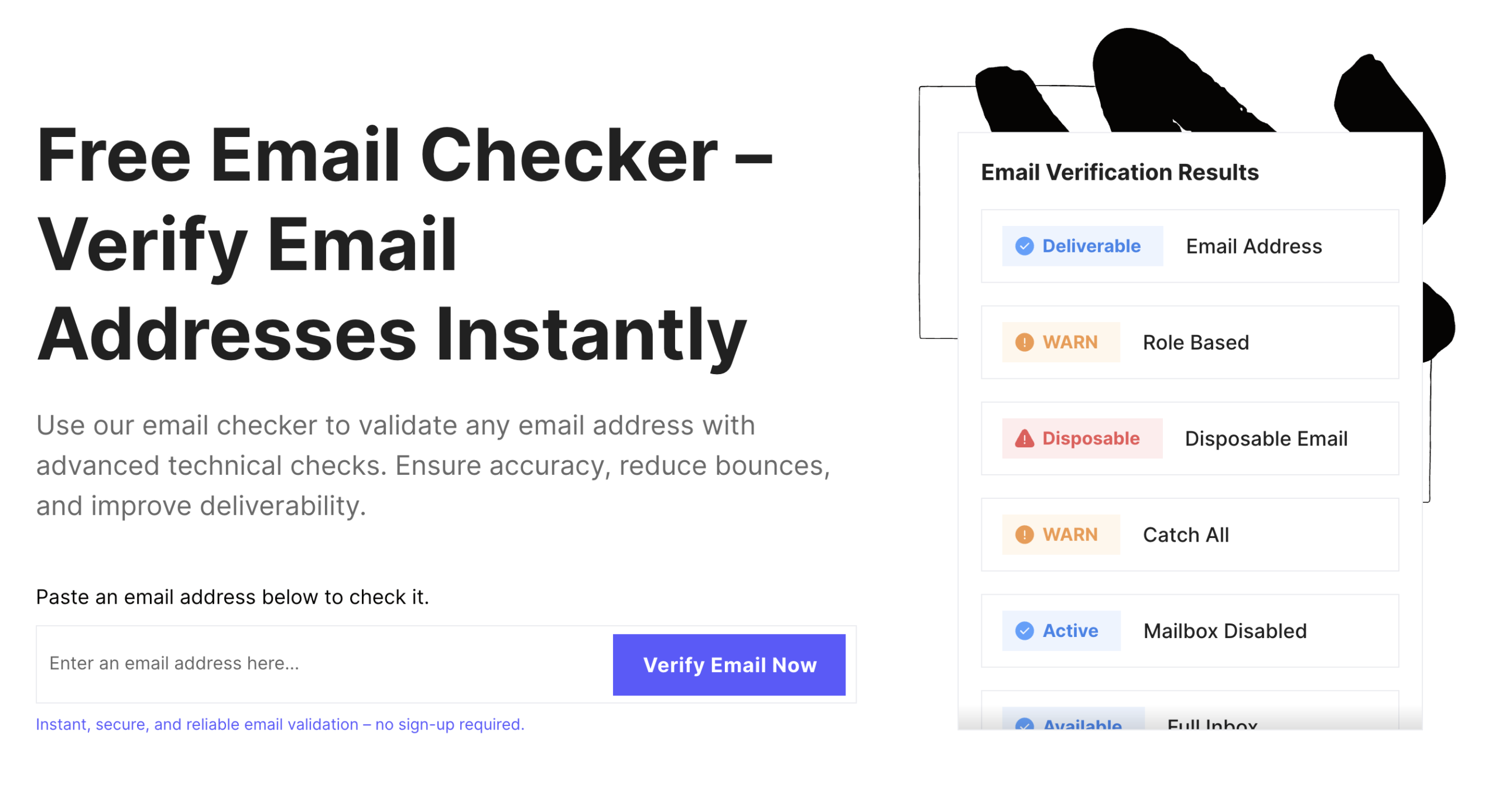
Email pinging is one of the oldest means of defining an email address’s validity. It implies establishing a simple communication channel and exchanging short messages between the sender and the recipient server without involving a full digital newsletter. It is based on SMTP, the Simple Mail Transfer Protocol, the core communication protocol that underlies digital interactions on the Internet. This technique checks for network connectivity, establishes a chat between two parties, communicates with a mail server, and validates the email address.
How Does it Work?
Email pinging involves several basic steps. First, the sender tries to connect to the mail server associated with the email address by establishing a connection through SMTP. If the connection is successful and the email server is accessible, the sender initiates a chat between the two parties.
Instead of sending a full email, the sender performs a series of SMTP commands that simulate the email sending process. The sender specifies the recipient’s details during this interaction, including several basic email headers.
Afterward, the sender waits for the mail server’s response. Depending on the commands, it should indicate whether the contact exists, is valid, and can receive digital messages. It is important to note that an unsuccessful response from the mail server does not always mean the email address is invalid. It might equally mean that the server experiences downtime or issues. Therefore, it is highly recommended to inspect the code carefully to understand the cause and repeat the procedure in case of an error on the server’s side.
Why Use Email Pinging?
Email pinging is an alternative way of checking whether the contact address exists and is valid. It has certain benefits.
First, it does not require sending a full email. You do not have to waste your precious time on creating a digital newsletter that meets mobile standards and compliance, as many ESPs require every digital correspondence to be properly authenticated and have an unsubscribe link. Otherwise, they will reject your request.
Second, it could be done on your own. You do not need specific equipment to ping a mail server; you only need your laptop and basic knowledge of SMTP and sending protocols.
Third, it is cost-effective. It does not require any additional investments or human resources. Although the method might look tricky at first glance, as it requires technical skills, anyone can still do it from the comfort of their home with a proper guide.
Fourth, it might uncover some essential information crucial for successful outreach. For instance, email pinging may derive such information as the IP address of the client, device type, browser type, and how long they have been on the site. This could be useful in adjusting your email campaign to the client’s technical environment and preferences.
Finally, it is an alternative method to ensure your contact addresses are valid. If you have doubts about previous checks of email addresses through other means, you might use it to validate “accessibility.” This way, you increase your chances of improving email deliverability and boosting the sender’s score and reputation. It also helps to eliminate contact addresses that are associated with malicious activity and protect your email activity from blacklisting. The threat is real but far from universal: across the sending IPs we test, our benchmark data shows 6% appear on an IP blacklist while 94% stay clean, and on the domain side it is rarer still, with just 0.30% of the domains we check turning up on a domain blacklist, so keeping your list and infrastructure tidy is what keeps you in the clean majority.
Limitations of Pinging an Email Address
While pinging mail servers is one of the oldest techniques to check email address validity, unfortunately, it is not completely reliable; though, it has certain trustworthiness. The reason is that it comes with limitations.
The first limitation is that mail servers are not obligated to respond to ping requests. Depending on their security and privacy protocols, they might easily ignore requests, even when the email address exists. There is more; servers might adopt anti-spam measures and techniques to fight malicious actors so that you can experience greylisting, temporary rejections, and false negatives. Conversely, there are catch-all servers that accept all incoming emails, resulting in a successful ping.
The second limitation is that a successful ping does not mean the existence of an email address. It means only that the target device is reachable, the network connectivity is valid, and the path between the two parties is functioning.
The third limitation is that pinging could be time-consuming when verifying multiple addresses, as every response must be analyzed and correctly interpreted.
The fourth limitation can be on your side, as Internet service providers might block outgoing SMTP requests for safety reasons or as part of their anti-spam policy.
Finally, pinging is a technically advanced method that requires skills, command-line experience, and an understanding of SMTP, network protocols, and server operations.
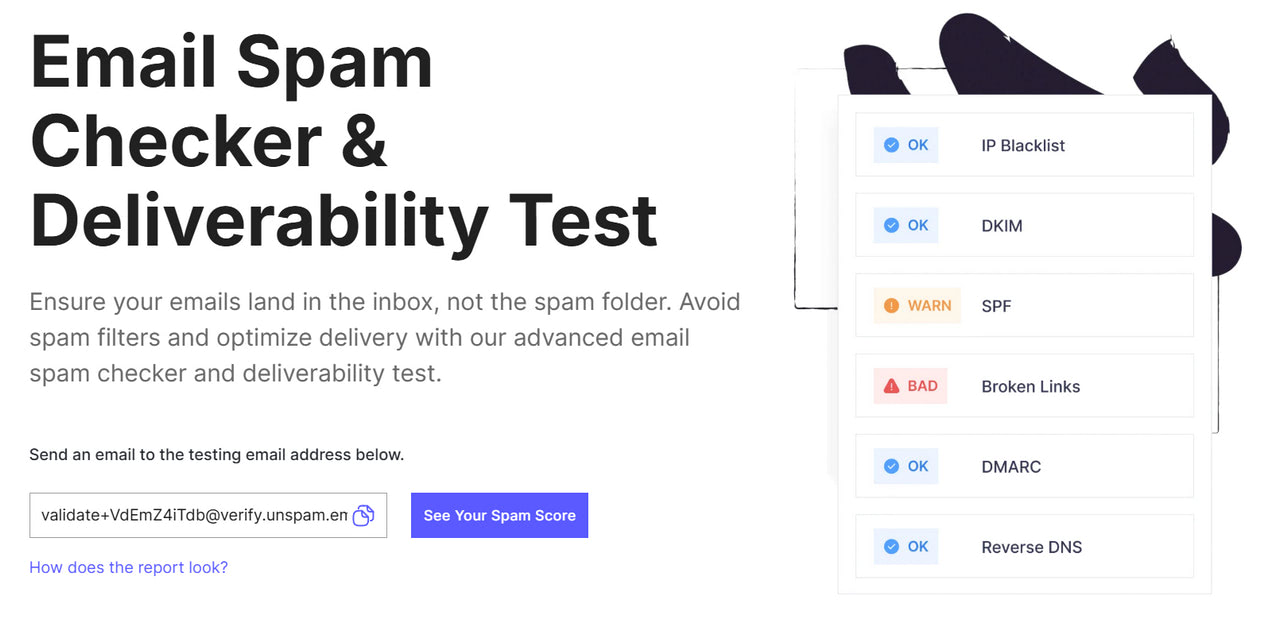
Therefore, when adopting this method, it is still important to check your digital newsletter when sending it to the chosen contact address through Unspam. It will eliminate all hidden issues and inconsistencies that might cause rejection from ISPs and ESPs.
Step-by-Step Guide to Check Email Address Validity by Pinging Email Address
Step 1: Understand SMTP Protocol and Telnet
Understanding the technical side of email pinging is crucial to avoid intimidation and confusion. At first glance, the process seems tricky, but anyone can easily handle it with basic knowledge of SMTP and Telnet.
SMTP is the primary standard protocol for exchanging messages between computers on the Internet. It is responsible for transferring and enables mail servers and other agents and units to transmit emails across networks, servers, operating systems, and computer hardware and software. It is a standardized method with a set of rules and procedures that every machine uses to deliver the message.
Telnet, “Teletype Network,” is a network protocol that turns your computer into a virtual machine, a digitized version of a physical computer that operates in the network. It allows your computer to connect to other computers (in particular mail servers) on the Internet and interact with their remote command interfaces by establishing a communication channel. This channel exchanges short text-based messages to assess the remote computer’s accessibility.
Step 2: Enable and Open Telnet on your Computer
Telnet is the basic network protocol and an essential component of the Microsoft operating system. It is built into the system, so you can easily enable and open it. As for MacOS and Linux, it must be installed separately.
For Microsoft users follow this routine:
- Ensure your computer’s firewalls allow Telnet connections on the specified port. As a rule, Telnet uses port number 23. Note that other ports can be used as well.
- Open Control Panel. If you do not know where it is, search for it in the Windows search bar.
- Open the “Program and Features” tab and click “Turn Windows features on or off.” This option is usually located on the left side of the window.
- Select the “Telnet Client” feature in the list and enable it by checking the box.
- Save changes by clicking on the “Apply Changes” button.
- Open a command prompt by pressing the Windows key + r. Afterward, type “cmd” in the Run box and click Ok.
For Mac users:
Unlike Microsoft, Telnet is not a default feature of the Apple operating system. Therefore, you need to install a special package manager called Homebrew, which is built for macOS and Linux. The installation guide is available on the official website. Please follow their instructions.
After Homebrew is installed, navigate to Terminal (it is located in Applications > Utilities) and open it. Install the Telnet client by typing the “brew install telnet” command and press Return.
Step 3: Get Mail Server Details
Knowing the remote mail server’s details is crucial to connecting with it and establishing a chat. For this, identify the SMTP server for the email domain using a special command in Terminal:
[nslookup -type=mx domain_name]
Replace the domain_name with the domain name associated with your client’s email address. Press Enter to run the command.
This will reveal the mail server (or a list of mail servers with their corresponding preference value) responsible for receiving email for the domain, which should, as a rule, include both incoming and outgoing servers. Alternatively, you may use MX Toolbox to get all essential data.
Among the returned information, you need the mail server with the lowest preference value, which is considered the primary server. So, try it first. In case of failure, you can try others.
Step 4: Connect to the Mail Server
Now, you can establish a connection and ping the mail server. You need to use a special command: TELNET mail.example.com port_number
Replace mail.example.com with the server address obtained from the previous step. The same goes for port_number.
Note that a mail server listens on port 25 by default. However, other ports, like 587, are also common. For instance, 587 is used for TLS/SSL communications.
If the connection is successful, you might get a response from the mail server, which indicates that it is ready to communicate (or accept commands).
Step 5: Chat with Mail Server
Once the connection is established and the mail server responds, the time has come to ping the email address by simulating email transfer through text-based commands.
First, introduce yourself. Start with the command that introduces your domain, computer, or address, which is “HELLO.” The basic syntax for the command line is:
"HELO yourdomain.com"
Then, try to reach the sender’s email account. Notify the mail server that an email comes from your domain:
"MAIL FROM:<your_domain_name>"
Replace your_domain_name with your email address.
Then specify the recipient’s information:
"RCPT TO:<recipient_email_address@domain.com>"
Replace recipient_email_address@domain.com with the corresponding data.
Inspect and analyze the response.
If you want to extend your conversation with the mail server, please check the Simple Mail Transfer Protocol commands you can use.
Step 6: Analyze Data
Depending on your SMTP commands, the conversation with the mail server might provide useful information. However, in this particular case, when you use only the RCPT TO:<recipient_email_address@domain.com> command, you might expect either a positive or a negative response.
The positive response might look like this:
250 2.1.5 Ok
250 2.1.5 is the success code that means an email address exists.
The negative response might look like this:
550-5.1.1 The email account that you tried to reach does not exist. Please try 550-5.1.1, double-checking the recipient's email address for typos or 550-5.1.1 unnecessary spaces. Learn more at 550 5.1.1 http://support.google.com/mail/...
Or something shorter like:
550 5.1.1 <nonexistent@example.com>: Recipient address rejected: User unknown in virtual mailbox table
550 5.1.1 is an error code that indicates that an email account does not exist.
Afterward, you might verify the email address using the “VRFY” command. The basic syntax is:
"VRFY receipent_email_address"
The positive server response should include the user’s mailbox.
Close the connection by typing “QUIT” and pressing Ok.
Several Useful SMTP Commands
If the connection is established and the mail address proves valid, you may derive useful data from the recipient’s mail server using special SMTP commands. For instance,
To get the recipient’s full name, use VRFY receipent_email_address, which returns not only the user’s mailbox but also the user’s full name.
To verify a list of mailing addresses, use EXPN along with the list of individual email addresses.
Also, you can type HELP and get all the commands the mail server supports.
SMTP response codes.
SMTP response code consists of three digits, each indicating something special.
The first digit indicates success, failure, or incompletion. It represents four main categories:
- Code that starts with 2 means success: the command was accepted, and the response was provided.
- Code that starts with 3 means the command was successful, but the mail server requires more information from you to give a response.
- Code that starts with 4 means the command failed temporarily, like low storage space on the remote server. In this case, you need to try again.
- Code that starts with 5 means the command failed for permanent reasons. So, there is no point in retrying the command.
The second digit indicates the kind of response that was sent.
The third digit provides extra information about the initial command.
Conclusion
Email pinging is the process of establishing a chat between the sender and recipient’s mail server and exchanging short messages to see whether the contact address exists. It does not require a full email, proper authentication, or compliance with laws and regulations to function, saving companies lots of time, money, and human resources. It is a great alternative to other validation methods.
The routine of email pinging requires technical skills, yet it is pretty straightforward. Use Terminal and Telnet protocol to establish communication and chat with the mail server. Following our simple step-by-step guide, you can easily do it.
Lastly, it should be noted that the method has limitations and might not be reliable. For instance, some mail servers might not respond even though the contact address exists because their security measures prohibit them from doing so, or they experience downtime due to technical issues.
